
Embedded Components Implementation
This section helps you launch a merchant cash advance program by adding prebuilt components into your platform's UI.
Configuring Payment Processor Settings
Configure your payment processor settings through the Unit Dashboard to provide anonymized data for prequalification and underwriting of merchant cash advance offers. You can add multiple processors if you would like Unit to evaluate income data from multiple sources when generating offers.
To configure your payment processor settings:
- Navigate to Settings from the top menu under the Developer section.
- Select the Payment Processing tab.
- Select your Vendor from the dropdown.
- Enter your API key (your payment processor secret key).
- Enter your Webhook secret (your payment processor webhook signing secret).
- Click Save to apply your settings.
Required Settings
| Setting | Required | Description |
|---|---|---|
| Vendor | Yes | Select your payment processor. |
| API key | Yes | Your payment processor API key (secret key). This is required for Unit to pull anonymized processing data to prequalify and generate merchant cash advance offers for your customers. |
| Webhook secret | Yes | Your payment processor webhook signing secret. This is required to verify incoming webhook events, understand when your customer receives a sales payout, and calculate/collect payments on active merchant cash advances. |
Creating Prequalified Offers
Create prospects to identify the population of businesses that you would like Unit to prequalify for a merchant cash advance offer.
To create a prospect, you must provide a JWT subject and payment processor account details (e.g., the customer's connected account ID on Stripe). You have the option to provide additional anonymized data that helps Unit more accurately assess eligibility and size offers.
| Verb | POST |
| URL | https://api.s.unit.sh/capital/prospects |
| Data Type | prospect |
| Timeout (Seconds) | 5 |
Attributes
| Name | Type | Description |
|---|---|---|
| prospectType Required | string | Type of prospect. Currently only Business is supported. |
| idempotencyKey Required | string | Unique key to ensure idempotent requests. |
| jwtSubject Required | string | Unique identifier for the end customer on your side. |
| paymentProcessorAccounts Required | array | A list of payment processor accounts associated with this prospect. See Payment Processor Accounts. |
| establishmentDate Optional | RFC3339 Date string | Date the business was established (e.g. 2014-01-28). |
| naicsCode Optional | string | 6-digit business NAICS code. |
| businessStructure Optional | string | Legal entity type of the business. One of LLC, Sole Proprietor, S Corporation, C Corporation. Helps Unit assess eligibility and suppress offers for ineligible entity types. |
| businessState Optional | string | Two-letter US state code where the business is located (e.g. CA). Helps Unit assess eligibility and suppress offers for businesses in ineligible states. |
| tags Required | object | See Tags. |
Payment Processor Accounts
An array of payment processor account objects. Each object identifies a single account on a specific processor.
| Name | Type | Description |
|---|---|---|
| type Required | string | The payment processor. Currently only Stripe is supported. |
| accountId Required | string | The account ID associated with the prospect on this processor (e.g. their Stripe connected account ID). |
curl -X POST 'https://api.s.unit.sh/capital/prospects'
-H 'Content-Type: application/vnd.api+json'
-H 'Authorization: Bearer ${TOKEN}'
--data-raw '{
  "data": {
    "type": "prospect",
    "attributes": {
      "prospectType": "Business",
      "idempotencyKey": "3a1a33be-4e12-4603-9ed0-820922389fb8",
      "jwtSubject": "2ab1f266-04b9-41fb-b728-cd1962bca52c",
      "paymentProcessorAccounts": [
        {
          "type": "Stripe",
          "accountId": "acct_1aBcDeFgHiJkLmN"
        }
      ],
      "establishmentDate": "2001-08-10",
      "naicsCode": "541511",
      "businessStructure": "LLC",
      "businessState": "CA"
    }
  }
}'
Response
Response is a JSON:API document.
201 Created
Prospect is a JSON:API resource, top-level fields:
| Name | Type | Description |
|---|---|---|
| id Required | string | Identifier of the prospect resource. |
| type Required | string | Type of the prospect resource. |
| attributes Required | JSON Object | JSON object representing the prospect data. |
Attributes
| Name | Type | Description |
|---|---|---|
| createdAt Required | RFC3339 Date string | The date the resource was created (e.g. 2022-02-23T12:15:47.386Z). |
| prospectType Required | string | Type of prospect. Currently only Business is supported. |
| paymentProcessorAccounts Required | array | A list of payment processor accounts associated with this prospect. |
| establishmentDate Optional | RFC3339 Date string | Date the business was established (e.g. 2014-01-28). |
| naicsCode Optional | string | 6-digit business NAICS code. |
| businessStructure Optional | string | Legal entity type of the business. |
| businessState Optional | string | Two-letter US state code where the business is located. |
| tags Required | object | See Tags. |
{
  "data": {
    "type": "prospect",
    "id": "7345432",
    "attributes": {
      "createdAt": "2022-02-23T12:15:47.386Z",
      "prospectType": "Business",
      "paymentProcessorAccounts": [
        {
          "type": "Stripe",
          "accountId": "acct_1aBcDeFgHiJkLmN"
        }
      ],
      "establishmentDate": "2001-08-10",
      "naicsCode": "541511",
      "businessStructure": "LLC",
      "businessState": "CA"
    }
  }
}
When a prospect is created, Unit will immediately evaluate the last six months of processing data for the business, as well as any additional data provided on the business, and determine if prequalified offers can be generated.
To create multiple prospects in a single request, use the bulk endpoint. Processing is asynchronous — the batch is created immediately with a Pending status and transitions to Completed once all prospects have been ingested.
The endpoint accepts two formats, selected by the Content-Type header.
JSON
| Verb | POST |
| URL | https://api.s.unit.sh/capital/prospects/bulk |
| Data Type | bulkProspects |
| Timeout (Seconds) | 5 |
Attributes
| Name | Type | Description |
|---|---|---|
| idempotencyKey Required | string | Unique key (1–255 chars) to ensure idempotent requests. |
| prospects Required | array | Array of prospect objects. At least 1 item required. |
| tags Optional | object | See Tags. Applied to the bulk batch. |
Each prospect object in the prospects array:
| Name | Type | Description |
|---|---|---|
| prospectType Required | string | Type of prospect. Currently only Business is supported. |
| jwtSubject Required | string | Unique identifier for the end customer on your side (1–255 chars). Must be unique within the batch. |
| paymentProcessorAccounts Required | array | Non-empty array of {type, accountId} objects. Currently only Stripe is supported as type. |
| businessName Optional | string | |
| businessContact Optional | object | fullName (first/last), email, and phone (countryCode/number). |
| establishmentDate Optional | RFC3339 Date string | Date the business was established (e.g. 2014-01-28). |
| businessStructure Optional | string | One of: Corporation, LLC, Partnership, PubliclyTradedCorporation, PrivatelyHeldCorporation, NotForProfitOrganization, SoleProprietor. |
| businessState Optional | string | Two-letter US state code. |
curl -X POST 'https://api.s.unit.sh/capital/prospects/bulk'
-H 'Content-Type: application/vnd.api+json'
-H 'Authorization: Bearer ${TOKEN}'
--data-raw '{
  "data": {
    "type": "bulkProspects",
    "attributes": {
      "idempotencyKey": "bulk-2026-06-23-001",
      "prospects": [
        {
          "prospectType": "Business",
          "jwtSubject": "partner-user-abc123",
          "paymentProcessorAccounts": [
            {
              "type": "Stripe",
              "accountId": "acct_1234567890"
            }
          ],
          "businessName": "Acme LLC",
          "establishmentDate": "2014-01-01",
          "businessStructure": "LLC",
          "businessState": "CA",
          "businessContact": {
            "fullName": {
              "first": "Jane",
              "last": "Doe"
            },
            "email": "jane@acme.com",
            "phone": {
              "countryCode": "1",
              "number": "5551234567"
            }
          }
        },
        {
          "prospectType": "Business",
          "jwtSubject": "partner-user-def456",
          "paymentProcessorAccounts": [
            {
              "type": "Stripe",
              "accountId": "acct_sample_002"
            }
          ],
          "businessName": "Riverside Catering Co.",
          "establishmentDate": "2018-03-15",
          "businessStructure": "SoleProprietor",
          "businessState": "CA",
          "businessContact": {
            "fullName": {
              "first": "Marcus",
              "last": "Rivera"
            },
            "email": "marcus@riversidecatering.com",
            "phone": {
              "countryCode": "1",
              "number": "4155550192"
            }
          }
        }
      ]
    }
  }
}'
201 Created
bulkProspects is a JSON:API resource, top-level fields:
| Name | Type | Description |
|---|---|---|
| id Required | string | Identifier of the bulk prospects batch. |
| type Required | string | bulkProspects |
| attributes Required | object | See below. |
| relationships Required | object | org relationship. |
Attributes
| Name | Type | Description |
|---|---|---|
| createdAt Required | RFC3339 Date string | The date the batch was created. |
| status Required | string | Pending while prospects are being processed; Completed once all prospects have been ingested. |
| tags Required | object | See Tags. |
{
  "data": {
    "type": "bulkProspects",
    "id": "1",
    "attributes": {
      "createdAt": "2024-06-01T12:00:00Z",
      "status": "Pending",
      "tags": {}
    },
    "relationships": {
      "org": {
        "data": {
          "type": "org",
          "id": "1"
        }
      }
    }
  }
}
CSV
Send the raw CSV file bytes (not base64, not multipart) with the following headers:
| Header | Value |
|---|---|
Content-Type | text/csv |
file-name | Filename of the CSV (e.g. prospects.csv) |
The response is the same 201 Created bulkProspects resource described above.
Format
The first row must be a header row. Columns must appear in the following order:
jwtSubject,prospectType,businessName,establishmentDate,businessStructure,businessState,contactFirstName,contactLastName,contactEmail,contactPhoneCountryCode,contactPhoneNumber,paymentProcessorAccounts
Column order is required. Additional columns are ignored; missing required columns return a 400.
Column reference:
| Column | Index | Type | Required | Notes |
|---|---|---|---|---|
jwtSubject | 0 | string | Yes | 1–255 chars. Unique identifier for the end customer on your side. Must be unique within the file. |
prospectType | 1 | string | Yes | Must be Business. |
businessName | 2 | string | No | |
establishmentDate | 3 | date | No | RFC 3339 full-date, e.g. 2020-06-01. |
businessStructure | 4 | string | No | One of: Corporation, LLC, Partnership, PubliclyTradedCorporation, PrivatelyHeldCorporation, NotForProfitOrganization, SoleProprietor. |
businessState | 5 | string | No | Two-letter US state code. |
contactFirstName | 6 | string | No | |
contactLastName | 7 | string | No | |
contactEmail | 8 | string | No | |
contactPhoneCountryCode | 9 | string | No | Must be provided together with contactPhoneNumber, or both empty. |
contactPhoneNumber | 10 | string | No | Must be provided together with contactPhoneCountryCode, or both empty. |
paymentProcessorAccounts | 11 | JSON | Yes | Non-empty JSON-encoded array of {type, accountId}. Currently only Stripe is supported as type. |
The paymentProcessorAccounts column contains a JSON array encoded inside a quoted CSV cell. Inner double-quotes are doubled per the CSV spec:
"[{""type"":""Stripe"",""accountId"":""acct_1234567890""}]"
Sample
jwtSubject,prospectType,businessName,establishmentDate,businessStructure,businessState,contactFirstName,contactLastName,contactEmail,contactPhoneCountryCode,contactPhoneNumber,paymentProcessorAccounts
partner-user-abc123,Business,Acme LLC,2014-01-01,LLC,CA,Jane,Doe,jane@acme.com,1,5551234567,"[{""type"":""Stripe"",""accountId"":""acct_1234567890""}]"
Validation errors
If any rows fail parsing, the API returns 400 with a message listing up to 20 per-line errors:
Failed to parse bulk prospects file [prospects.csv]
line 2: jwtSubject must not be empty
line 3: paymentProcessorAccounts must not be empty
line 4: contactPhoneCountryCode and contactPhoneNumber must both be provided or both be empty
If the file has fewer than 12 columns:
Expected at least 12 columns, but got N
If every row in the file is invalid:
All of file [prospects.csv] rows are invalid, please check you have the right columns in the right order
| Verb | GET |
| URL | https://api.s.unit.sh/capital/prospects/bulk/{id} |
| Data Type | bulkProspects |
| Timeout (Seconds) | 5 |
Returns the bulkProspects resource by ID. Poll until status is Completed to confirm all prospects in the batch have been ingested.
| Name | Type | Description |
|---|---|---|
| id Required | path | ID of the bulk prospects batch returned when the batch was created. |
Surfacing Prequalified Offers to Businesses
Embed unit-elements-capital-prequalification to surface merchant cash advance offers at high-intent moments across your platform — in dashboards, sidebars, home screens, or dedicated financing tabs. The component renders only when a customer has an active Prequalified offer; for Rejected and Expired statuses it renders nothing and takes up no space.
Set product-type="MerchantCashAdvance" and choose a display mode via mca-display-type:
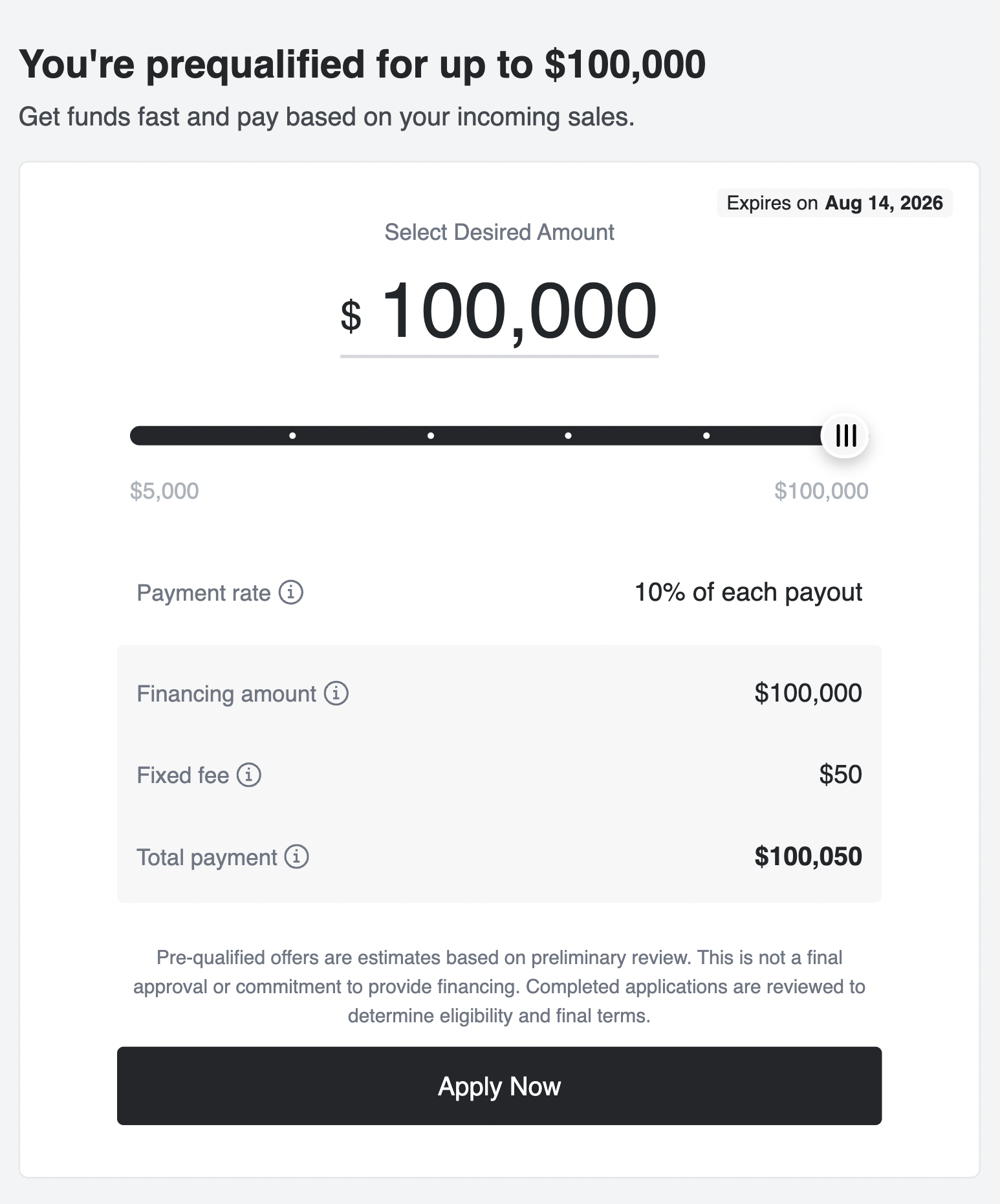
- Slider — an interactive amount selector with a live quote and an Apply Now CTA.
- Banner — 10 layout options × 2 content variants for promotional placements across your platform.
Embedding the component in multiple locations — dashboards, payment pages, revenue views — increases visibility and drives adoption.
A prospect must exist for the customer before the component will render.
Slider
Click to view full preview
The slider lets the customer select a desired advance amount within their prequalified range. As the amount changes, a live quote updates with the repayment rate, fixed fee, and total payment. Clicking Apply Now fires unitCapitalPrequalifiedSliderApplyNowClicked — listen for this event to navigate the customer to the full application.
<unit-elements-capital-prequalification
	jwt-token="demo.jwt.token"
	product-type="MerchantCashAdvance"
	mca-display-type="slider"
></unit-elements-capital-prequalification>
Note demo.jwt.token is a real value you can use to preview the component without any setup.
Banners
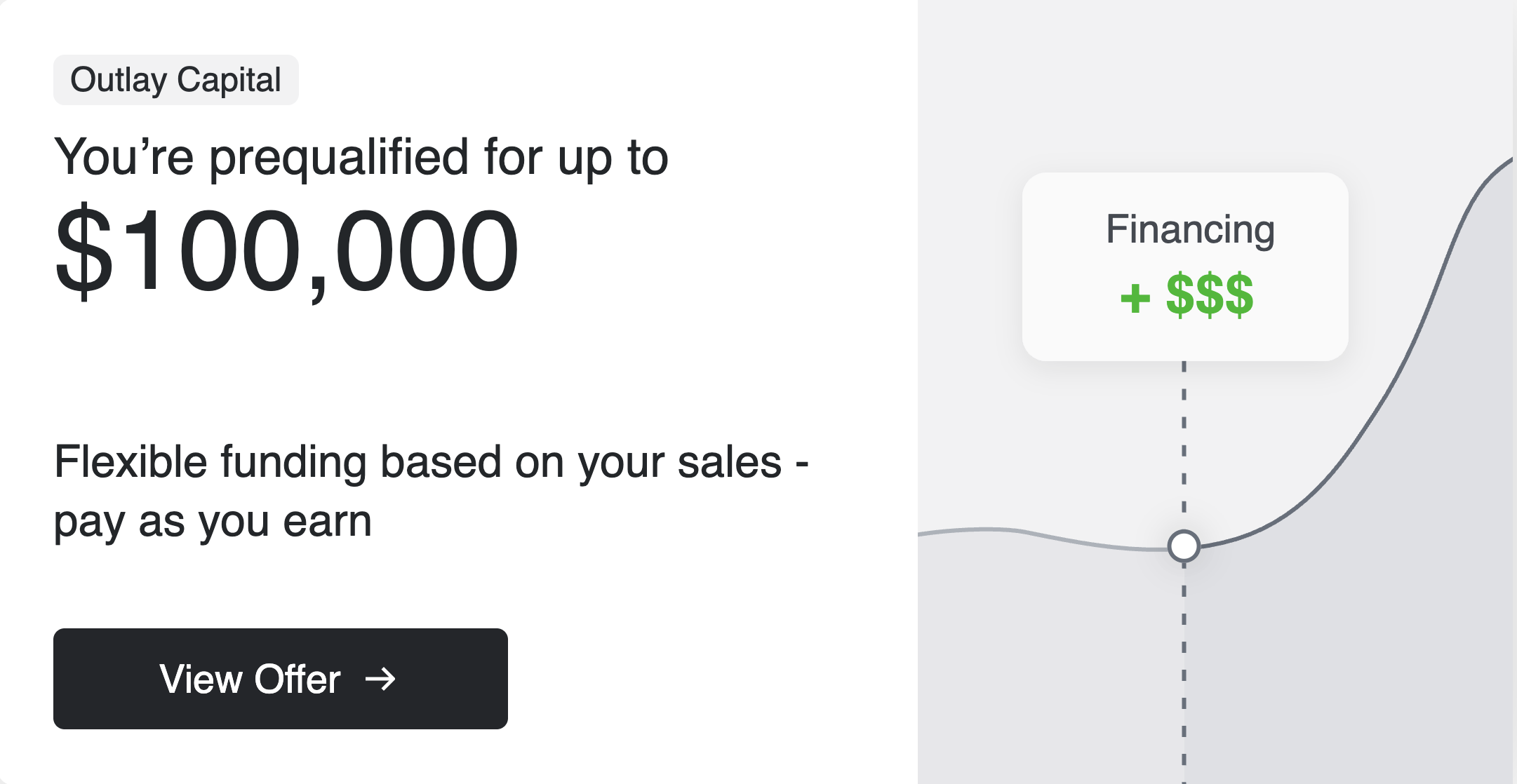
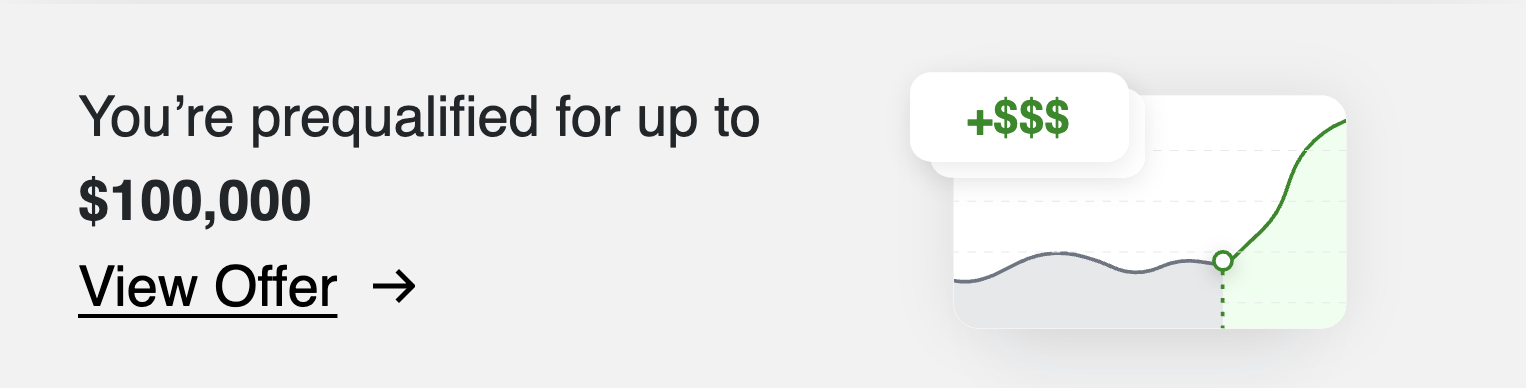
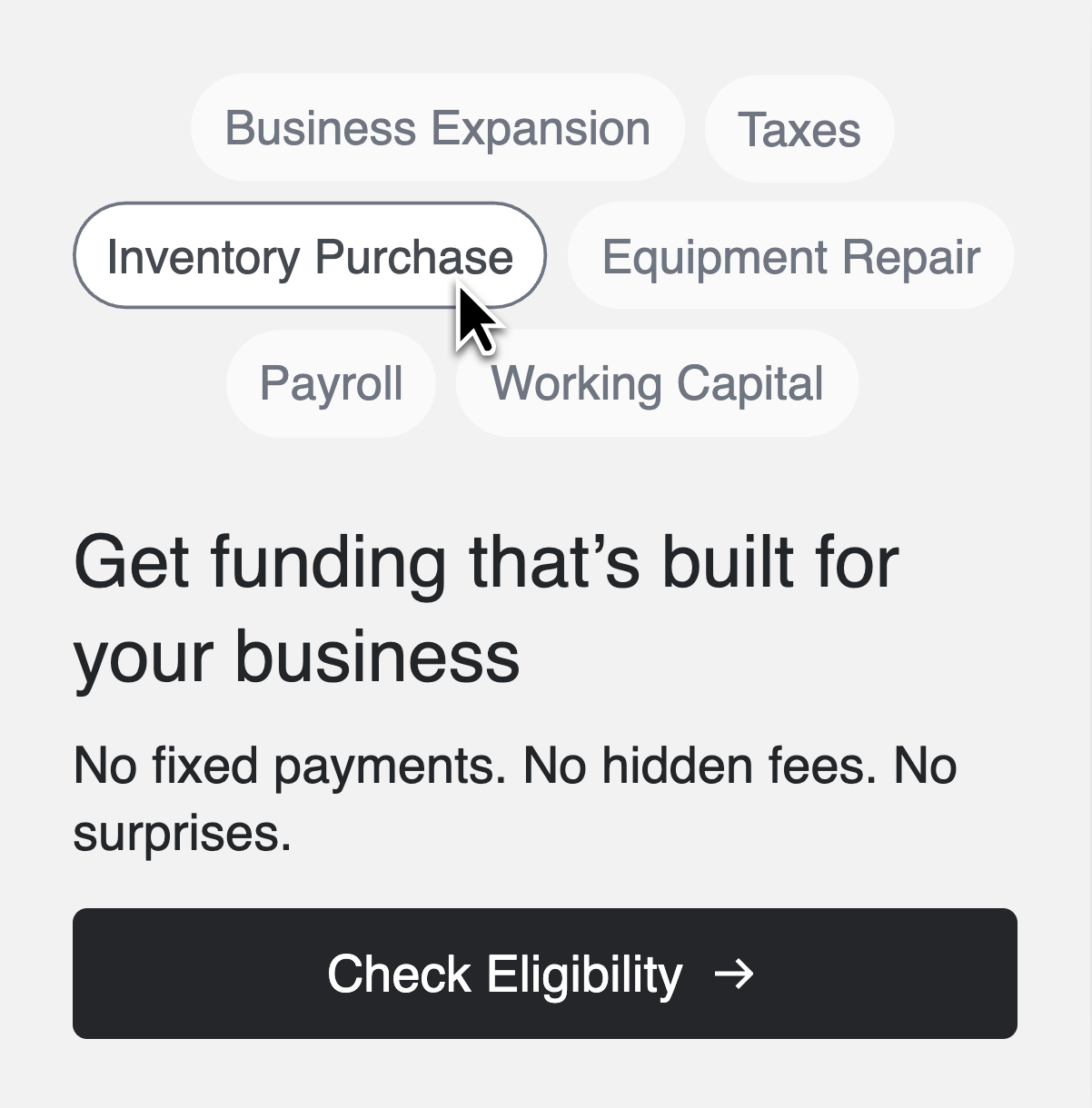
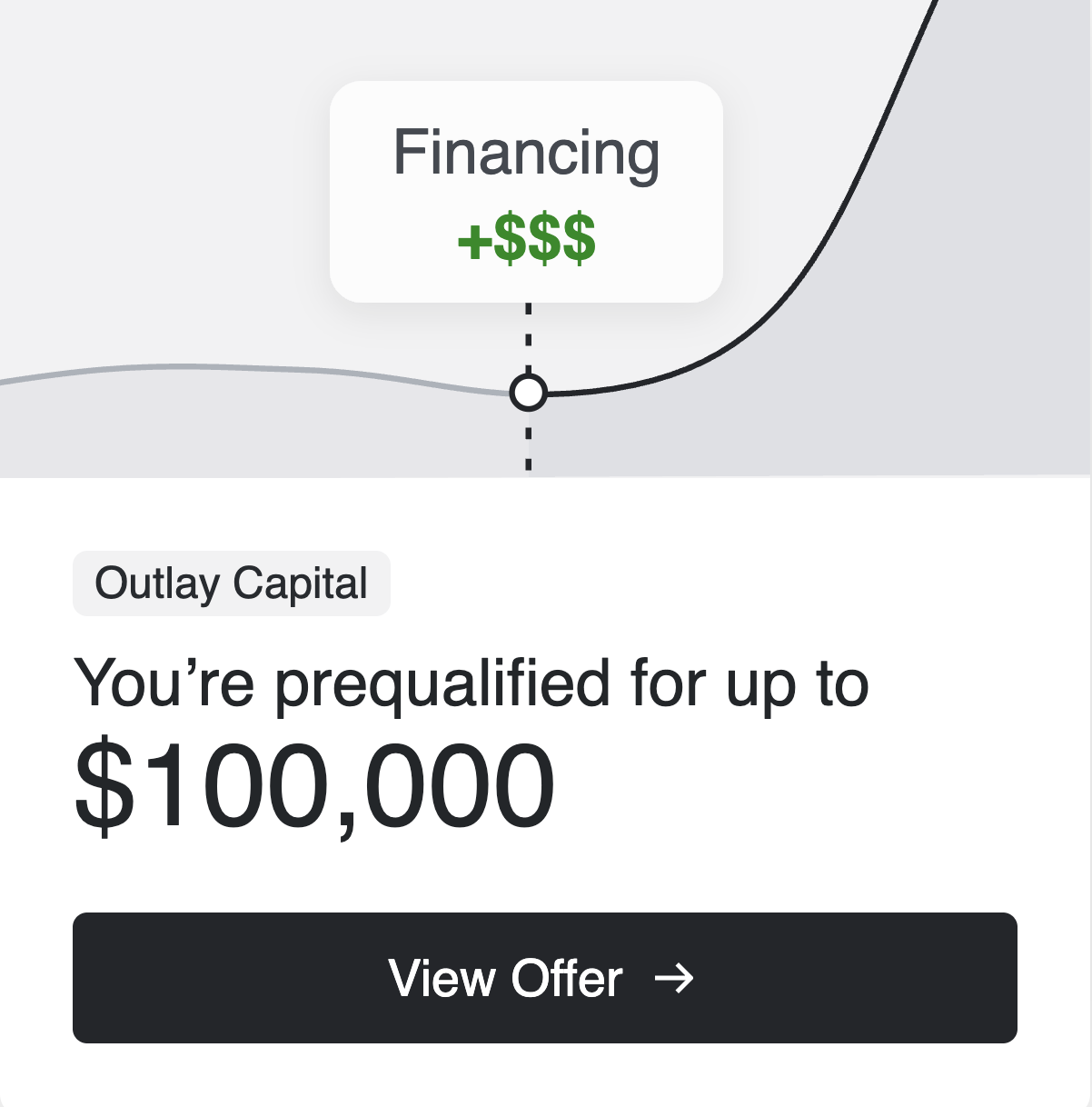
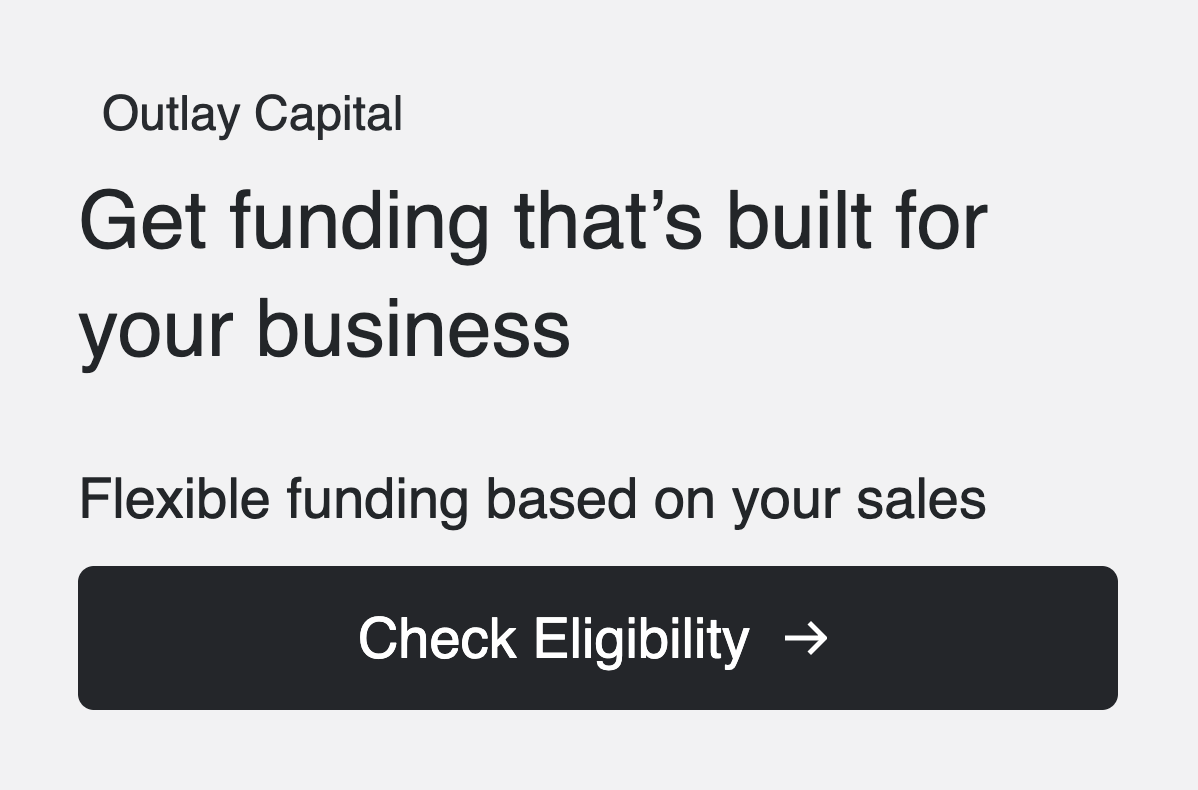
Banners are promotional placements you embed outside the main capital flow — in dashboards, sidebars, or home screens. For outreach emails, use a static image that links to a page where the component is embedded. Each banner shows a View Offer CTA. When clicked:
- If
redirect-urlis set, the customer is taken to that URL. - Otherwise, the component switches internally to the slider.
Two content variants apply to all banner types via banner-variant:
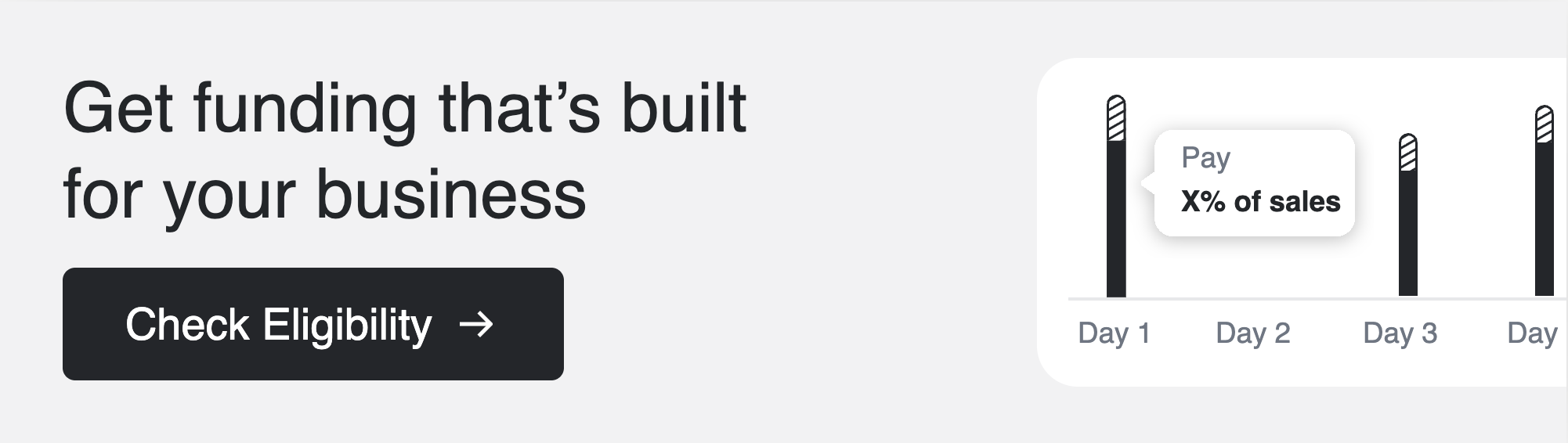
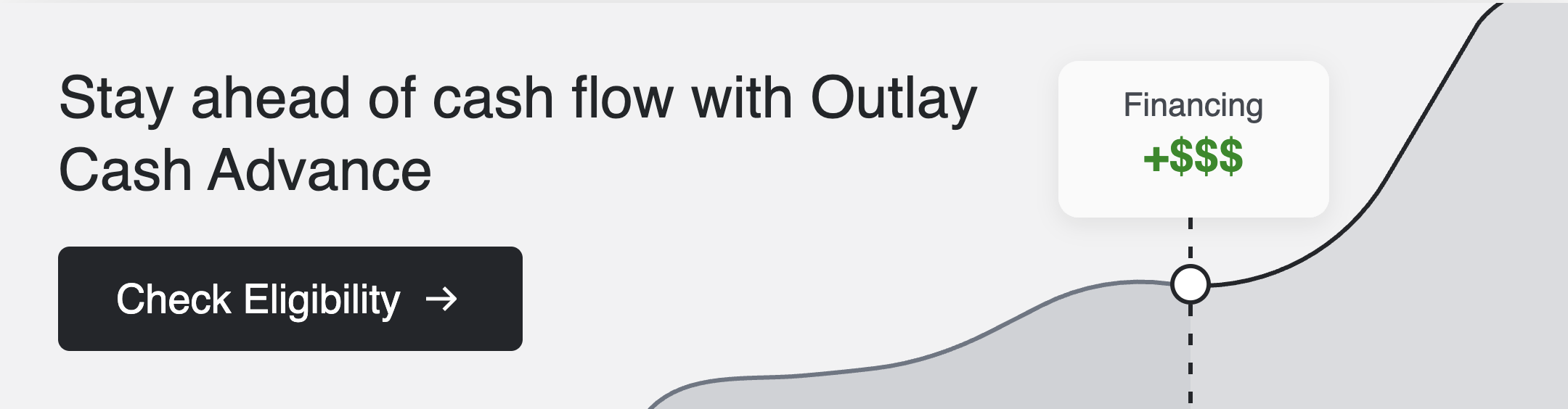
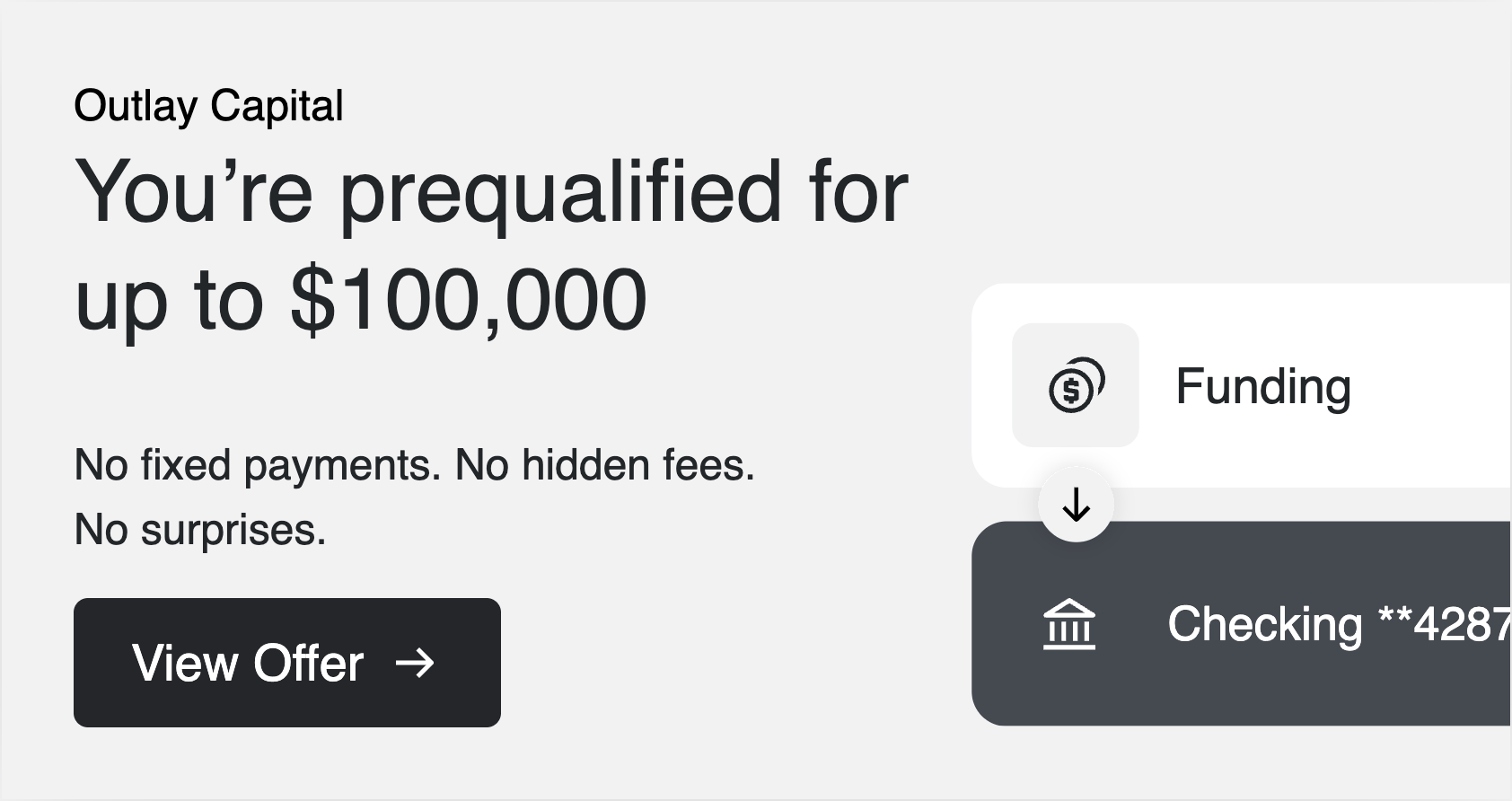
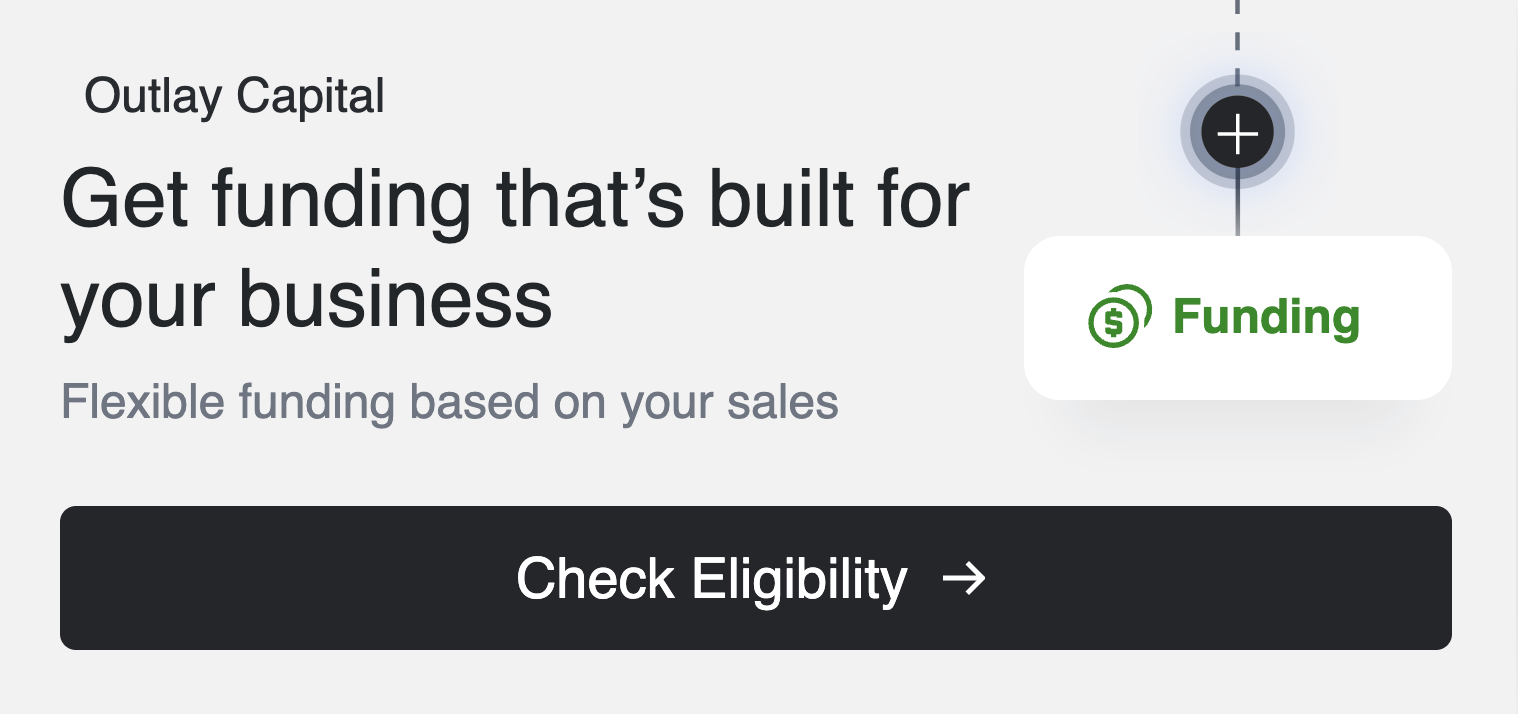
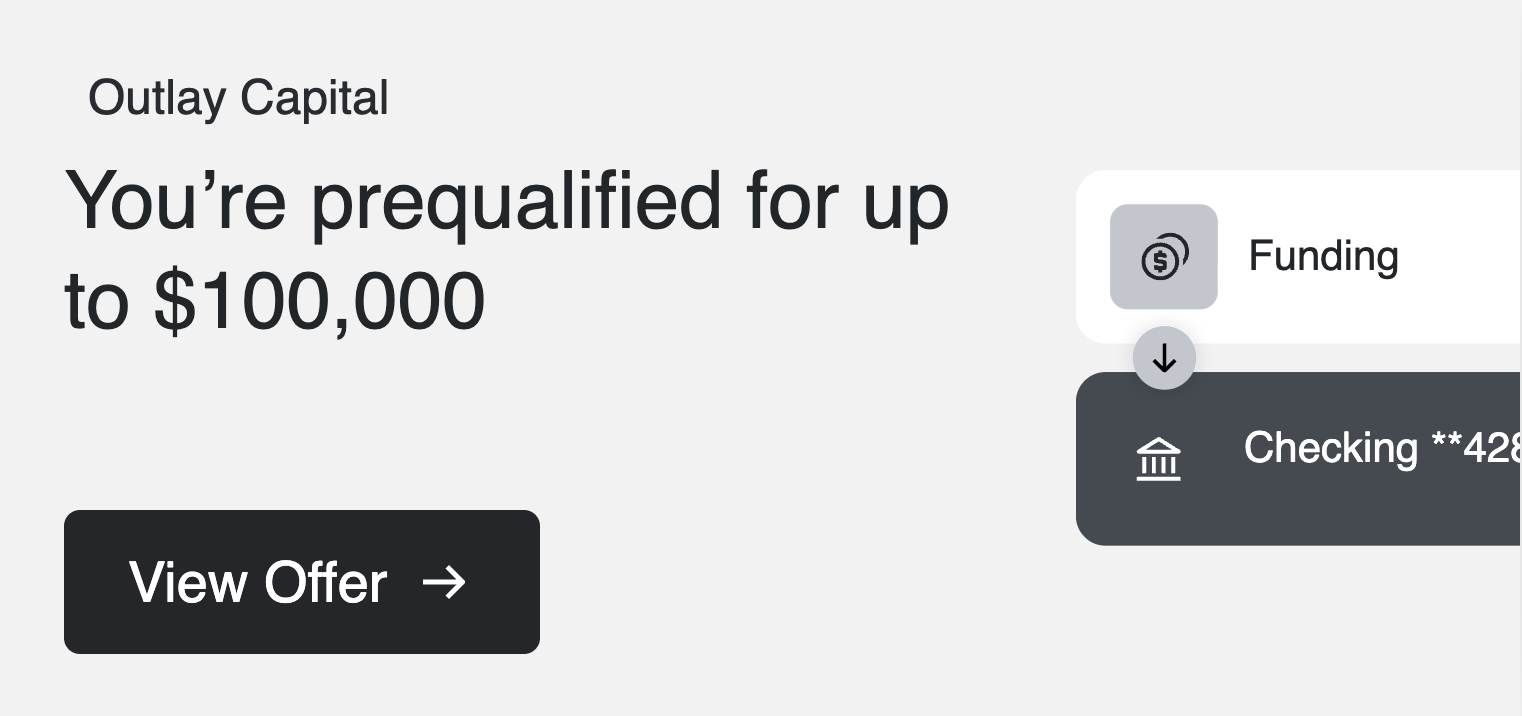
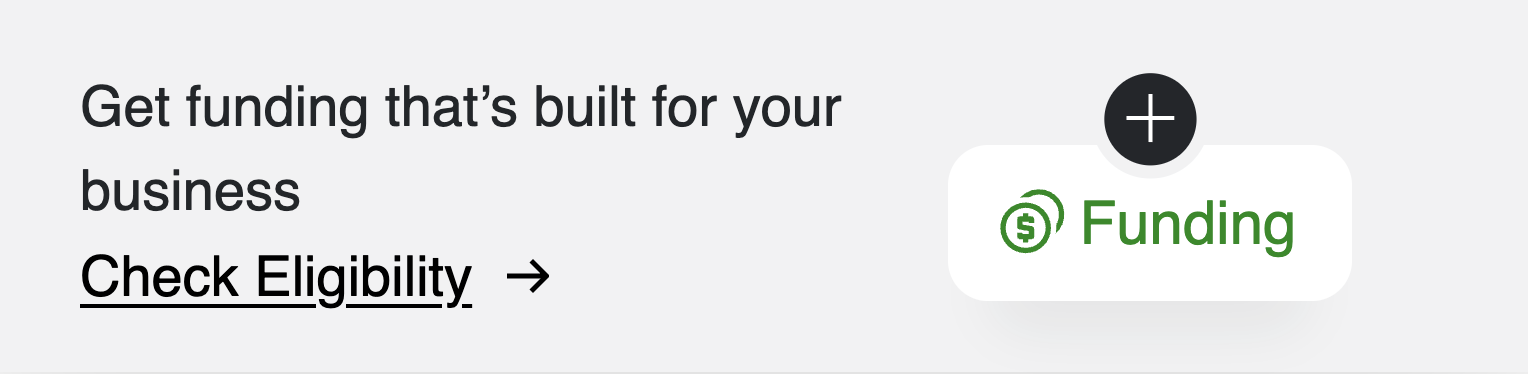
funding— promotes the product to a customer who hasn't yet engaged.prequalified— celebrates the prequalification and shows the customer's personalized offer amount.
The show-close-icon attribute renders a dismiss button. The dismiss click is not handled internally — add a listener on the host element if you need close behavior.
Slim
A compact horizontal strip for tight placements such as notification bars or page headers.
Funding
Click to view full preview
Prequalified
Click to view full preview
Promo
A standard promotional card suited for dashboards and home screens.
Funding
Click to view full preview
Prequalified
Click to view full preview
Promo Compact
A condensed mobile-native version of the promo layout.
Funding
Click to view full preview
Prequalified
Click to view full preview
Inline
A full-width placement that spans the container edge-to-edge.
Funding

Click to view full preview
Prequalified

Click to view full preview
Inline Compact
A condensed version of the inline layout. inline switches to inline-compact automatically at container widths ≤ 767 px — no attribute change needed.
Funding
Click to view full preview
Prequalified
Click to view full preview
Sidebar Illustrated
A sidebar placement with an illustration alongside the copy.
Funding
Click to view full preview
Prequalified
Click to view full preview
Sidebar Plain
A sidebar placement with copy only, no illustration.
Funding
Click to view full preview
Prequalified
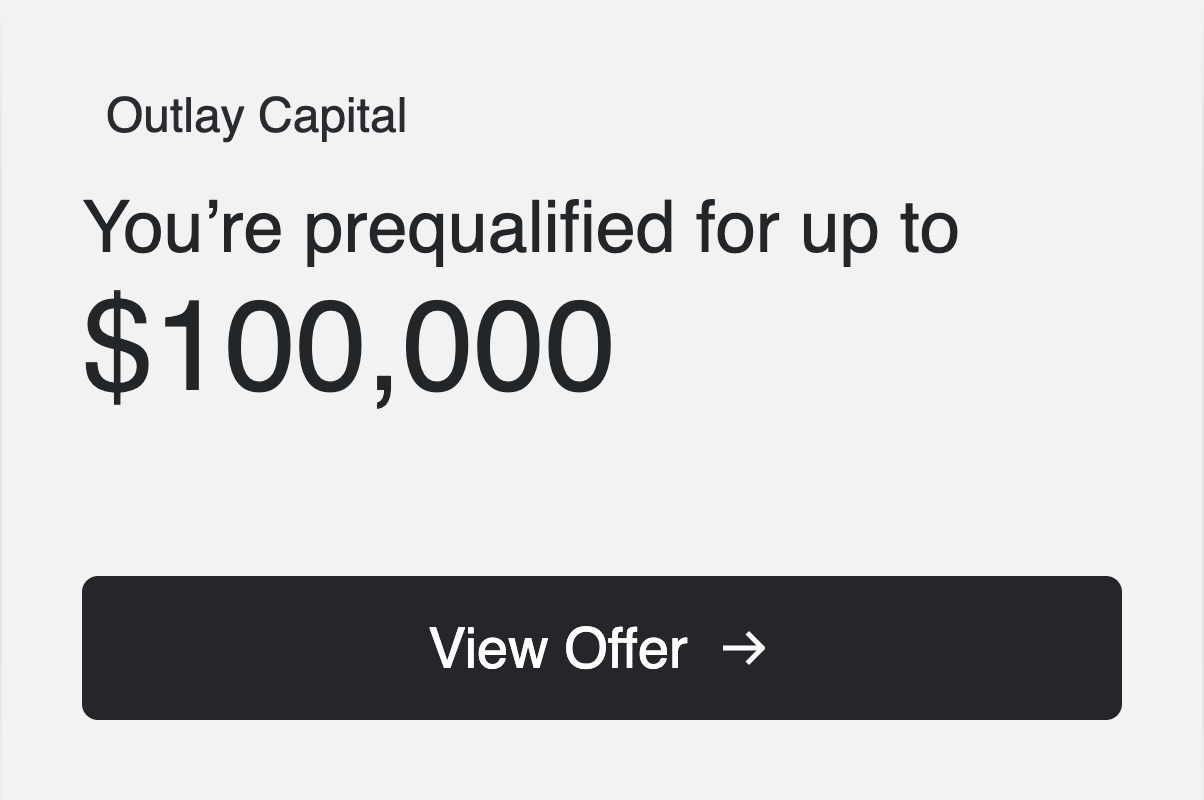
Click to view full preview
Sidebar Compact
A condensed mobile-native sidebar layout.
Funding
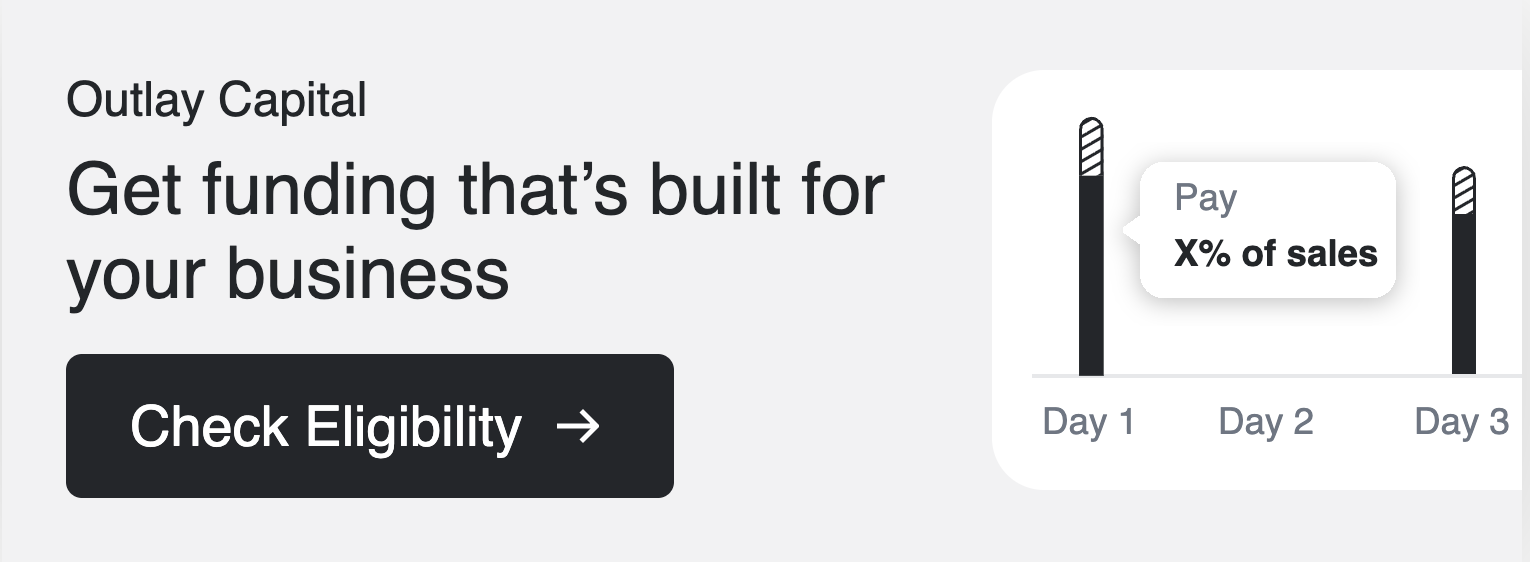
Click to view full preview
Prequalified
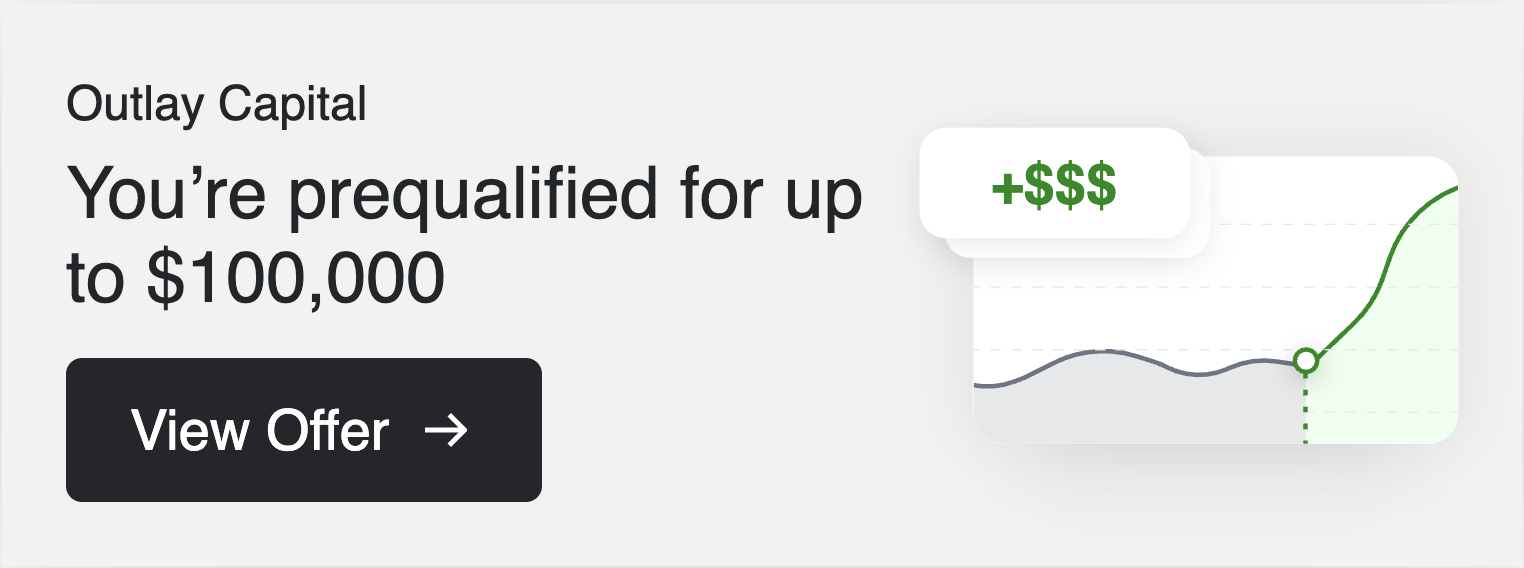
Click to view full preview
Hero
A large full-width placement for prominent areas such as landing pages or top-of-page sections.
Funding
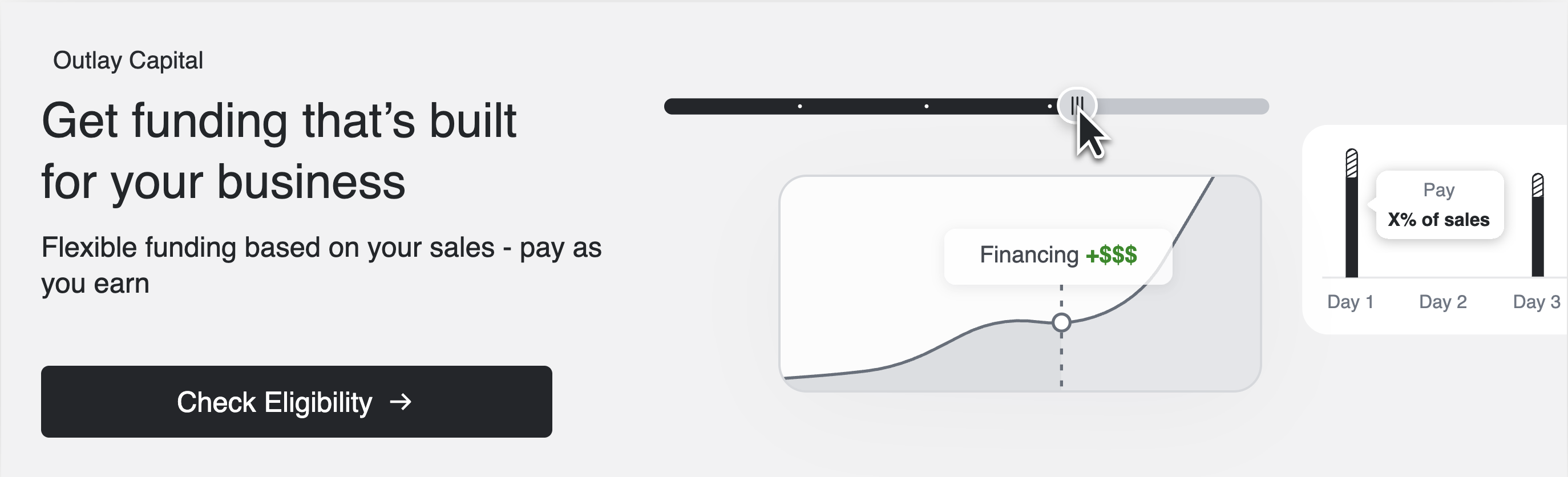
Click to view full preview
Prequalified
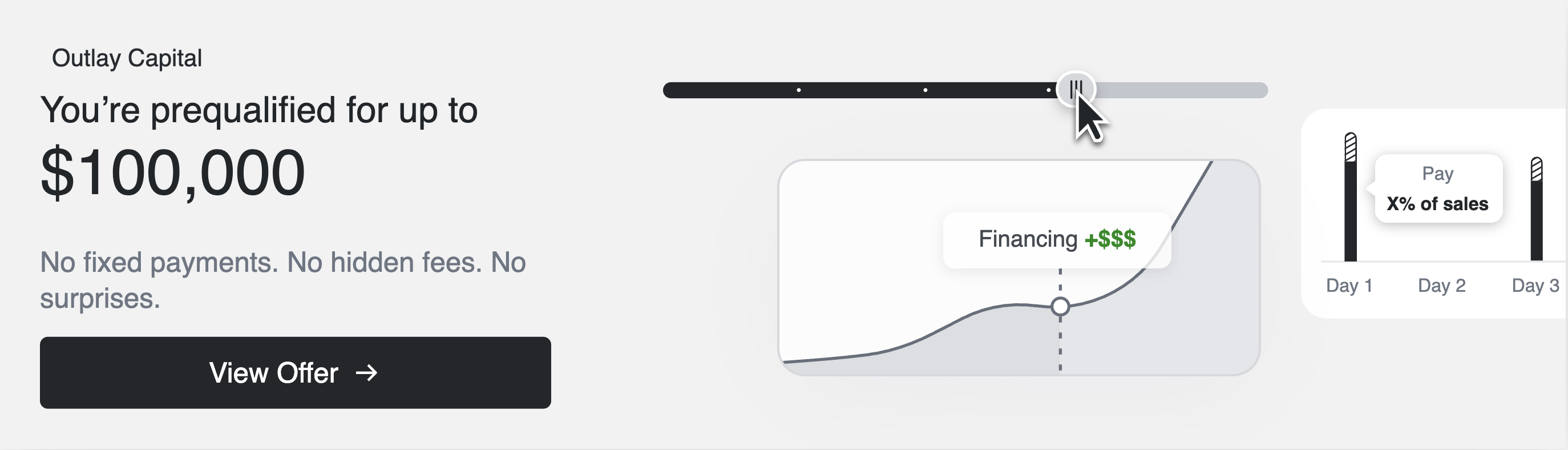
Click to view full preview
Hero Compact
A condensed version of the hero layout. hero switches to hero-compact automatically at container widths ≤ 767 px — no attribute change needed.
Funding
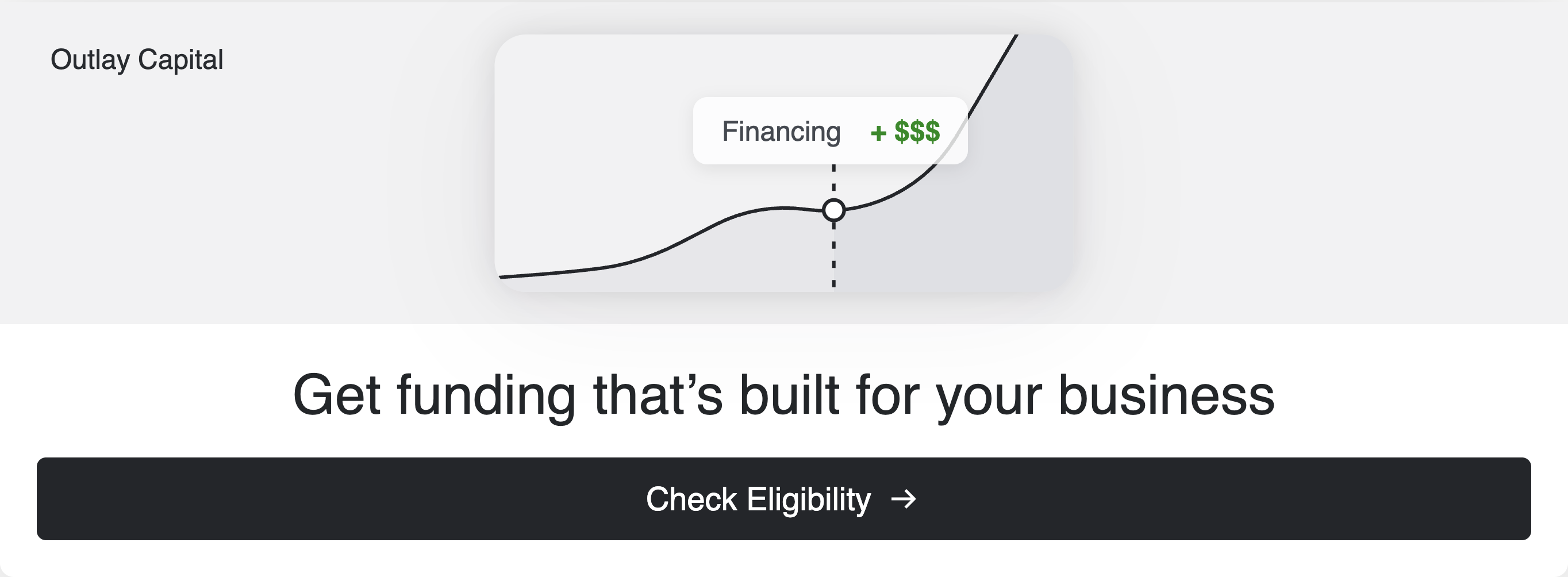
Click to view full preview
Prequalified
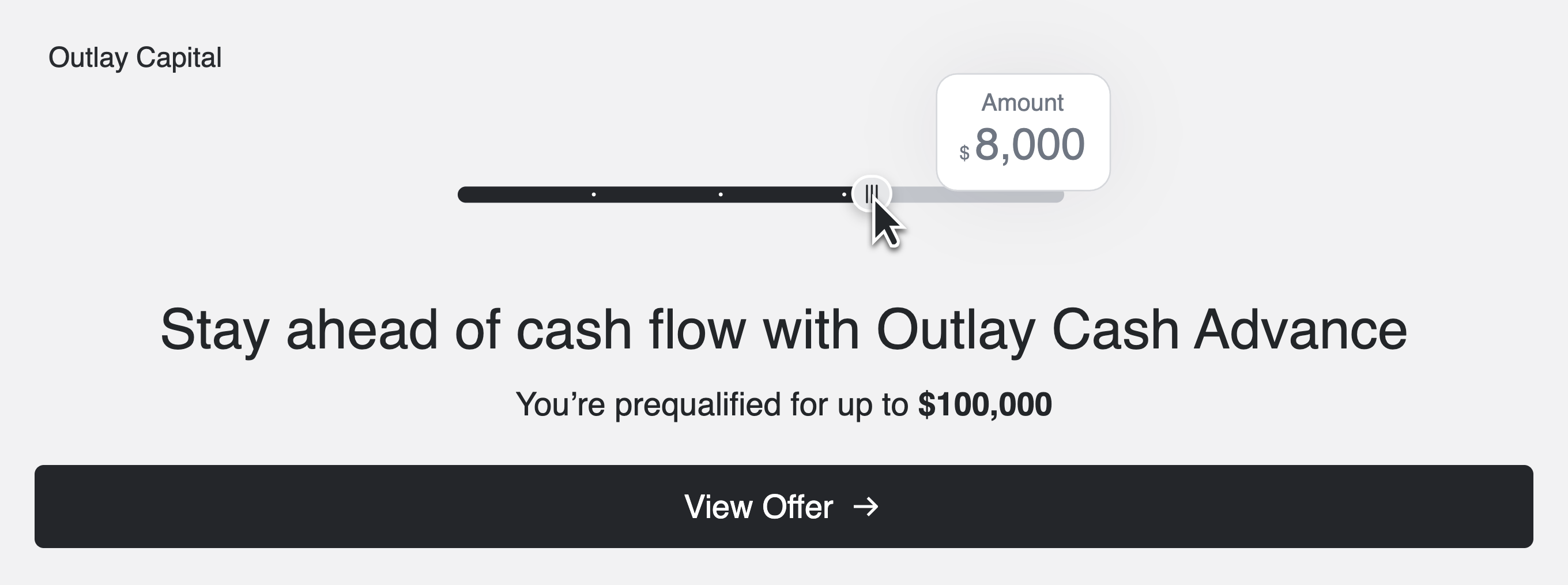
Click to view full preview
Attributes
<unit-elements-capital-prequalification
	jwt-token="demo.jwt.token"
	product-type="MerchantCashAdvance"
	mca-display-type="banner"
	banner-type="promo"
	banner-variant="prequalified"
	show-close-icon="true"
	redirect-url="https://your-app.example.com/capital"
></unit-elements-capital-prequalification>
| Attribute | Type | Description |
|---|---|---|
jwt-token | string | JWT for authenticating API calls. Required. |
product-type | string | Must be MerchantCashAdvance for the MCA path. |
mca-display-type | string | slider (default) or banner. |
banner-type | string | Banner layout when mca-display-type="banner". One of slim, promo, promo-compact, inline, inline-compact, sidebar-illustrated, sidebar-plain, sidebar-compact, hero, hero-compact. Defaults to promo. |
banner-variant | string | Content variant. funding (default) or prequalified. |
show-close-icon | boolean | Show a dismiss button on the banner. Optional, defaults to false. The dismiss click is not handled internally — add a listener on the host element if you need close behavior. |
redirect-url | string | If set, clicking View Offer navigates to this URL instead of switching to the slider. Optional. |
customer-token | string | Optional. When provided, the slider uses it to fetch quote data instead of the JWT. Does not affect prequalification status or rendering. |
Click events
Events are dispatched on the host element. Listen to respond to user interactions.
| Event | Fired when | Detail |
|---|---|---|
unitCapitalPrequalifiedOfferViewed | Slider mounts / prequalification data loads | { productType, minimumAdvanceAmount, maximumAdvanceAmount, status, customerId } |
unitCapitalPrequalifiedOfferSliderMoved | User moves the slider | { amount, customerId } |
unitCapitalPrequalifiedSliderApplyNowClicked | User clicks Apply Now on the slider | null |
unitCapitalPrequalifiedBannerViewOfferClicked | User clicks View Offer on a banner | { route: string } |
Example — navigating to the application when a customer clicks Apply Now:
<unit-elements-capital-prequalification
  jwt-token="demo.jwt.token"
  product-type="MerchantCashAdvance"
  mca-display-type="slider"
></unit-elements-capital-prequalification>
<script>
  document
    .querySelector('unit-elements-capital-prequalification')
    .addEventListener('unitCapitalPrequalifiedSliderApplyNowClicked', function () {
      window.location.href = 'https://your-app.example.com/capital/apply';
    });
</script>
To customize the appearance of the component, see Theming options.
Embedding Financing in Your Platform
Embed the Ready-to-Launch component to allow customers to apply for financing and manage their financing after they accept an offer, directly in your platform's UI.
If you are currently using Unit's Ready-to-Launch Banking and/or Bill Pay product(s), you've already completed this step! The Ready-to-Launch capital experience will appear to your customers alongside their other products in an all-in-one experience.
Customers can:
- Complete an application
- Accept a final offer and sign terms
- View their payment progress
- Monitor transaction history
- Make payments
- View their signed agreement and disclosures
The Ready-to-Launch component displays content dynamically based on the customer's financing status:
- Active prequalified offer: Displays offer details and a prompt for the customer to start an application.
- Active application: Displays the in-progress application for the customer to complete and submit.
- Active final offer: Displays the final offer terms for the customer to review, accept, and sign.
- Active financing: Displays the customer's active financing, including payment progress, transaction history, and options to make payments or view their signed agreement.
Embedding
If you have not done so already, embed the Ready-to-Launch component into your app.
- Add the script tag below to your HTML header
<script async src="https://ui.s.unit.sh/release/latest/components-extended.js"></script>
In the production environment, use https://ui.unit.co/release/latest/components-extended.js as the script source.
- Add a new page to your app that will host the Ready-to-Launch capital experience (for example, a dedicated Financing page). Paste the code below to the new page.
<unit-elements-white-label-app jwt-token="demo.jwt.token"></unit-elements-white-label-app>
You may choose to create unit-elements-white-label-app dynamically using JavaScript:
<html>
  <head>
    <script
      async
      src="https://ui.s.unit.sh/release/latest/components-extended.js"
    ></script>
  </head>
  <body>
    <div id="unit-app-placeholder"></div>
    <script>
      const unit = document.createElement("unit-elements-white-label-app");
      unit.setAttribute("jwt-token", "demo.jwt.token");
      document.querySelector("#unit-app-placeholder").append(unit);
    </script>
  </body>
</html>
Authentication
In order to seamlessly authenticate with Unit's Ready-to-Launch Capital app, you need to pass it a JWT, that allows us to identify your user and verify that they are logged in.
Unit will not ask the user to log in using a separate set of credentials. However, before performing any sensitive banking activities, we will OTP the user.
In sandbox, please use code 000001 to complete the OTP.
Configuring your identity provider
If your identity provider (or your own implementation) exposes a JWKS path (for example, Okta, Auth0, AWS Cognito, or Stytch), follow the steps below. If not, follow the steps in Unit's Custom JWT Authentication Guide.
Log into Unit's dashboard.
- Under Developer, go to Settings.
- In the Authentication tab, choose your identity provider from the Provider dropdown.
- Paste the JWKS path into the JWKS field.
Passing The JWT
Pass your JWT to Unit's Ready-to-Launch component (see example below), replacing the static token that was previously there.
<unit-elements-white-label-app jwt-token="{{JwtToken}}"></unit-elements-white-label-app>
Cleanup
Ready-to-Launch Capital will use 2 keys in local storage: unitCustomerToken and unitVerifiedCustomerToken. It's important to clean them up when the user logs out from your app, or after 24 hours, whichever comes first.
localStorage.removeItem("unitCustomerToken");
localStorage.removeItem("unitVerifiedCustomerToken");
Starting from version 4.2.0, tokens are stored in memory rather than localStorage. If you are using version 4.2.0 or later, you no longer need to manually remove these keys on logout.
Content Security Policy
If you are using a Content-Security-Policy (CSP) header, you may need to extend it to allow the web components and third-party integrations (such as Zendesk and Plaid) to work correctly.
Add the following <meta> tag:
<meta
  http-equiv="Content-Security-Policy"
  content="
    connect-src 'self'
      https://*.s.unit.sh
      https://*.unit.co
      https://*.zdassets.com
      https://*.zendesk.com
      https://cdn.plaid.com
      https://*.au10tixservices.com;
    script-src 'self'
      https://*.zdassets.com
      https://*.zendesk.com
      https://cdn.plaid.com
      https://*.au10tixservices.com;
    frame-src 'self'
      https://*.zendesk.com
      https://cdn.plaid.com
      https://*.au10tixservices.com;
  "
/>