
Check Deposits
The check deposit component allows you to let your customers deposit a check into a specific deposit account. The component takes the user through all the required stages:
- Set amount
- Take photos of the front and back of the check
- Review and submit the check deposit
Implementation
Web Components
Add the check-deposit element to your app where you'd like it to be presented.
<unit-elements-check-deposit
	account-id="1105561"
	fee="1.5"
	customer-token=""
	theme=""
	initial-stage-back-button="true"
	final-stage-done-button="true"
	enable-device-handoff="true"
></unit-elements-check-deposit>
Inputs:
| Name | Type | Required | Description |
|---|---|---|---|
| account-id | string | Yes | Unit account id. The account to deposit to. |
| fee | string | No | Fee charged for making the check deposit, will be presented to the user. |
| customer-token | string | Yes | A Unit Customer token. Required Scopes: customers accounts check-deposits check-deposits-write |
| theme | string | No | A URL that specifies the UI configuration. |
| language | string | No | A URL that specifies the language configuration. |
| initial-stage-back-button | boolean string ("true" / "false") | No | An action button at the first stage of the payment flow. Default "false" |
| final-stage-done-button | boolean string ("true" / "false") | No | An action button at the final stage of the payment flow. Default "false" |
| enable-device-handoff | boolean string ("true" / "false") | No | If set to true, will allow handoff to mobile device from Desktop. |
| tags | string | No | Stringified JSON object of tags to be attached to the payment. |
Events:
| Event Name | Description | Detail |
|---|---|---|
| unitCheckDepositCreated | Occurs when a check deposit is successfully created | [Promise] CheckDeposit |
| unitCheckDepositRestartRequest | Occurs when "Deposit another check" is clicked | [Promise] CheckDeposit |
| unitPaymentInitialStageBackButtonClicked | Occurs when the initial stage back button is clicked | |
| unitPaymentFinalStageDoneButtonClicked | Occurs when the final stage done button is clicked |
Device handoff:
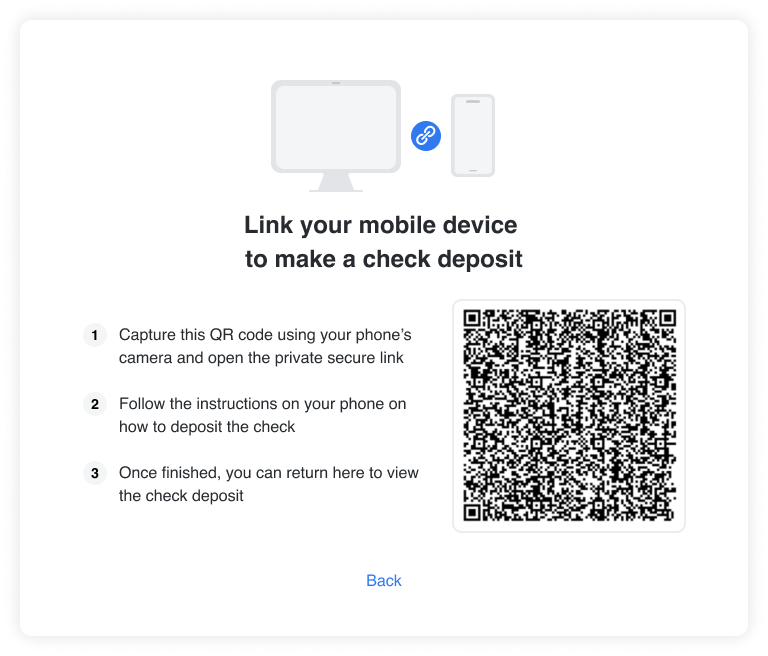
Check deposit component supports device handoff feature, which allows users to start the check deposit process on a desktop device and continue on a mobile device. By scanning a QR code, user will be redirected to the mobile device with the check deposit component.
React Native SDK
Prerequirements:
To enable check scanning with our SDK, please request the camera permissions in your application.
Android: navigate to the AndroidManifest.xml file and insert the following:
<uses-permission android:name="android.permission.CAMERA" />
iOS: navigate to the Info.plist file and insert the camera permission key:
    <key>NSCameraUsageDescription</key>
    <string>Your custom message requesting permission from the user</string>
If you're using native check scanning with Veryfi, also add the photo library permission key:
    <key>NSPhotoLibraryUsageDescription</key>
    <string>Your custom message requesting permission from the user</string>
UNCheckDeposit props:
| Name | Type | Required | Description |
|---|---|---|---|
| accountId | string | NO | Unit account id of the account to deposit to. When omitted, the user selects the account. |
| fee | number | NO | Fee changed for making the check deposit, will be presented to the user. |
| theme | string | NO | A URL that specifies the UI configuration. |
| language | string | NO | A URL that specifies the language configuration. |
| initialStageBackButton | boolean | NO | An action button at the first stage of the payment flow. Default false |
| finalStageDoneButton | boolean | NO | An action button at the final stage of the payment flow. Default false |
| onInitialStageBackButtonClicked | () => Void | NO | Occurs when the initial stage back button is clicked. |
| onFinalStageDoneButtonClicked | () => Void | NO | Occurs when the final stage done button is clicked. |
| onDepositCreated | (depositCheckData: UNCheckDeposit) => Void | NO | Occurs when a check deposit is successfully created |
| onRestartRequest | (depositCheckData: UNCheckDeposit) => Void | NO | Occurs when "Deposit another check" is clicked |
| onLoad | (response: UNComponentsOnLoadResponse<UNAccount>) => void | NO | Callback for a loaded component |
Example:
import React from 'react';
import {
	UNCheckDepositComponent,
	UNCheckDeposit,
	UNAccount,
	UNComponentsOnLoadResponse,
} from 'react-native-unit-components';

export default function YourComponent() {
	return (
		<UNCheckDepositComponent
			accountId={'YOUR_ACCOUNT_ID'}
			fee={1.5}
			onDepositCreated={(checkData: UNCheckDeposit) =>
				console.log('Check deposit created:', checkData)
			}
			onRestartRequest={(checkData: UNCheckDeposit) =>
				console.log('Restart Request. Check data: ', checkData)
			}
			onLoad={(response: UNComponentsOnLoadResponse<UNAccount>) => {
				console.log(response);
			}}
		/>
	);
}
Native Check Scanning with Veryfi:
The UNCheckDepositComponent supports native check scanning powered by the Veryfi Lens SDK. When enabled, customers capture check images using a native camera experience instead of the default web-based flow, resulting in higher image quality and a smoother user experience.
Prerequisites:
- Veryfi credentials from your Unit account team. Contact your Unit representative to receive:
- API credentials (Client ID, username, API key) — used to initialize VeryfiLens at runtime
- npm registry credentials — to install the Veryfi React Native package
- Maven credentials — to fetch the Veryfi Android SDK during the Android build
The steps below add the Veryfi React Native package, wire up the Android native dependency, and pass the runtime API credentials to the Unit SDK. After completing them, check deposits will use the native Veryfi camera on iOS and Android instead of the default web scanner.
Step 1 — Install the Veryfi React Native package
The @veryfi/react-native-veryfi-lens package is hosted on Veryfi's private Nexus npm registry. Configure npm authentication, then install — the package vendors the iOS framework directly, and pulls the Android SDK from Veryfi's Maven during the Android build (handled in step 2).
Create or update .npmrc at your project root:
@veryfi:registry=https://nexus.veryfi.com/repository/npm/
//nexus.veryfi.com/repository/npm/:username=YOUR_NPM_USERNAME
//nexus.veryfi.com/repository/npm/:_password=YOUR_NPM_PASSWORD
//nexus.veryfi.com/repository/npm/:always-auth=true
Then install the package and the iOS pods (no CocoaPods source or credentials are needed — VeryfiLens.xcframework ships as a vendored framework inside node_modules):
npm install @veryfi/react-native-veryfi-lens
cd ios && pod install
Step 2 — Register the Veryfi Maven repository (Android)
Create android/veryfi.properties (gitignored):
MAVEN_VERYFI_USERNAME=YOUR_MAVEN_USERNAME
MAVEN_VERYFI_PASSWORD=YOUR_MAVEN_PASSWORD
Edit android/build.gradle. Inside the existing allprojects { repositories { ... } } block, register the Veryfi Maven repo with credentials read from the properties file:
allprojects {
  repositories {
    // ... existing repositories

    def veryfiProps = new Properties()
    def veryfiFile = rootProject.file("veryfi.properties")
    if (veryfiFile.exists()) {
      veryfiProps.load(new FileInputStream(veryfiFile))
      maven {
        url "https://nexus.veryfi.com/repository/maven-releases/"
        credentials {
          username veryfiProps['MAVEN_VERYFI_USERNAME']
          password veryfiProps['MAVEN_VERYFI_PASSWORD']
        }
      }
    }
  }
}
Step 3 — Pass the runtime API credentials to the Unit SDK
Before rendering UNCheckDepositComponent, call setVeryfiCredentials with the API credentials provided by your Unit account team:
import { UnitComponentsSDK } from 'react-native-unit-components';

UnitComponentsSDK.setVeryfiCredentials({
  clientId: '<YOUR_CLIENT_ID>',
  userName: '<YOUR_USERNAME>',
  apiKey: '<YOUR_API_KEY>',
  url: 'https://api.veryfi.com/',
});
The Unit SDK detects the linked Veryfi framework at runtime and, when both the framework is present and these credentials are set, automatically routes check deposit through the native camera. No further wiring is required.
Troubleshooting:
Android debug build fails with Manifest merger failed: usesCleartextTraffic
React Native's debug manifest sets android:usesCleartextTraffic="true" so Metro (HTTP) can reach the device. The Veryfi SDK's library manifest hardcodes false as a security default. AGP refuses to silently pick a winner, so the debug build fails with:
Manifest merger failed : Attribute application@usesCleartextTraffic
value=(true) from AndroidManifest.xml
is also present at [com.veryfi.lens:veryfi-lens-sdk] value=(false).
Add tools:replace="android:usesCleartextTraffic" to android/app/src/debug/AndroidManifest.xml to tell AGP your value wins:
<application
    android:usesCleartextTraffic="true"
    tools:replace="android:usesCleartextTraffic"
    tools:targetApi="28"
    tools:ignore="GoogleAppIndexingWarning"/>
Production builds are unaffected — they don't set this attribute and inherit Veryfi's false.
iOS testing — capture does not advance with non-check images
Veryfi Lens runs check document detection on iOS before capture can proceed. During QA, if you photograph something that is not check-shaped (for example, a random picture on your desk), the capture flow may not advance and no explicit error is shown. This is expected Veryfi behavior — it is not a sign that your credentials or integration are misconfigured.
For iOS sandbox and QA testing, use a physical check or a printed check image. Once Veryfi detects a check-shaped document, the green alignment frame appears and you can tap to capture the front and back as usual.
Android SDK
Component name: UNCheckDepositComponent
Prerequirements:
To enable check scanning with our SDK, please request the camera permissions in your application manifest.
<uses-permission android:name="android.permission.CAMERA" />
getCheckDepositComponent parameters:
| Name | Type | Required | Description |
|---|---|---|---|
| accountId | String | NO | Unit account id of the account to deposit to. When omitted, the user selects the account. |
| additionalSettings | UNCheckDepositViewSettingsInterface | NO | Additional settings unique for this component |
| theme | String | NO | A URL that specifies the UI configuration. |
| language | String | NO | A URL that specifies the language configuration. |
| callbacks | UNCheckDepositComponentCallbacks | NO | Component's Callbacks sealed class |
UNCheckDepositComponentCallbacks
The callbacks parameter for UNCheckDepositComponent is of the following type:
typealias UNCheckDepositComponentCallbacks = (callback: UNCheckDepositComponentCallback) -> Unit
The UNCheckDepositComponentCallback is sealed class that has the following callbacks that you can receive from a CheckDeposit component:
sealed class UNCheckDepositComponentCallback {
    data object OnInitialStageBackButtonClicked: UNCheckDepositComponentCallback()
    data object OnFinalStageDoneButtonClicked: UNCheckDepositComponentCallback()
    data class OnDepositCreated(val checkDeposit: UNCheckDeposit): UNCheckDepositComponentCallback()
    data class OnRestartRequest(val checkDeposit: UNCheckDeposit): UNCheckDepositComponentCallback()
    data class OnLoad(val onLoadResponse: Result<UNAccount>): UNCheckDepositComponentCallback()
}
To get the CheckDeposit Component fragment, call the getCheckDepositComponent method of UnitComponentsSdk.manager.ui.views.
Example:
import android.os.Bundle
import android.view.LayoutInflater
import android.view.View
import android.view.ViewGroup
import androidx.fragment.app.Fragment
import co.unit.un_components.api.UnitComponentsSdk
import co.unit.un_components.common.builders.UNCheckDepositViewSettingsBuilder
import co.unit.un_components.common.enums.UNCheckDepositComponentCallback
import co.unit.un_components.components.UNCheckDepositComponent

class CheckDepositFragment : Fragment() {
    private var unCheckDepositComponent: UNCheckDepositComponent? = null

    override fun onCreateView(
        inflater: LayoutInflater,
        container: ViewGroup?,
        savedInstanceState: Bundle?
    ): View? {
        val fragmentLayout = inflater.inflate(R.layout.FILE_NAME, container, false)

        // Define your callbacks
        val callbacks: (UNCheckDepositComponentCallback) -> Unit = { callback ->
            when (callback) {
                is UNCheckDepositComponentCallback.OnInitialStageBackButtonClicked -> handleInitialStageBackButtonClicked()
                is UNCheckDepositComponentCallback.OnFinalStageDoneButtonClicked -> handleFinalStageDoneButtonClicked()
                is UNCheckDepositComponentCallback.OnDepositCreated -> handleDepositCreated(callback.checkDeposit)
                is UNCheckDepositComponentCallback.OnRestartRequest -> handleRestartRequest(callback.checkDeposit)
                is UNCheckDepositComponentCallback.OnLoad -> handleOnLoad(callback.onLoadResponse)
            }
        }

        // Check if this is a fresh creation or restoration after process death
        unCheckDepositComponent = if (savedInstanceState == null) {
            // Fresh creation - create new component and add to fragment manager
            UnitComponentsSdk.manager.ui.views.getCheckDepositComponent(
                accountId = YOUR_ACCOUNT_ID,
                theme = YOUR_THEME_URL,
                language = YOUR_LANGUAGE_URL
            ).also {
                childFragmentManager.beginTransaction()
                    .replace(R.id.CONTAINER_NAME, it as Fragment, FRAGMENT_TAG)
                    .commitNow()
            }
        } else {
            // Restoration after process death - find existing fragment by tag
            childFragmentManager.findFragmentByTag(FRAGMENT_TAG) as? UNCheckDepositComponent
        }

        // Set callbacks after obtaining the component (required for both fresh and restored)
        unCheckDepositComponent?.callbacks = callbacks

        return fragmentLayout
    }

    // ...
    // Event handlers
    // ...

    companion object {
        private const val FRAGMENT_TAG = "check_deposit_component"
    }
}
The additionalSettings parameter for UNCheckDepositComponent has this attribute:
UNCheckDepositViewSettingsInterface
| Name | Type | Default Value | Description |
|---|---|---|---|
| fee | Double | null | Fee charged for making the check deposit, will be presented to the user. |
| initialStageBackButton | Boolean | false | An action button at the first stage of the payment flow. |
| finalStageDoneButton | Boolean | false | An action button at the final stage of the payment flow. |
You can use UNCheckDepositViewSettingsBuilder() to create an instance of the interface and define your additional settings.
val additionalSettings = UNCheckDepositViewSettingsBuilder()
    .fee(...)
    .initialStageBackButton(...)
    .finalStageDoneButton(...)

unCheckDepositComponent = UnitComponentsSdk.manager.ui.views.getCheckDepositComponent(
    accountId = YOUR_ACCOUNT_ID,
    additionalSettings = additionalSettings,
    theme = YOUR_THEME_URL,
    language = YOUR_LANGUAGE_URL
)
Native Check Scanning with Veryfi:
The UNCheckDepositComponent supports native check scanning powered by the Veryfi Lens SDK. When enabled, customers capture check images using a native camera experience instead of the default web-based flow, resulting in higher image quality and a smoother user experience.
Prerequisites:
- Veryfi credentials from your Unit account team. Contact your Unit representative to receive:
- API credentials (Client ID, username, API key) — used to initialize VeryfiLens at runtime
- Maven credentials — to fetch the Veryfi Android SDK during the Android build
The steps below register Veryfi's private Maven repository, add the Veryfi Android SDK dependency, and pass the runtime API credentials to the Unit SDK. After completing them, check deposits will use the native Veryfi camera on Android instead of the default web scanner.
Step 1 — Register the Veryfi Maven repository
Store the Maven credentials in local.properties (gitignored):
mavenVeryfiUsername=YOUR_MAVEN_USERNAME
mavenVeryfiPassword=YOUR_MAVEN_PASSWORD
Edit settings.gradle. Read the credentials and register the Veryfi Maven repo inside dependencyResolutionManagement.repositories:
def localProps = new Properties()
def localFile = new File(settingsDir, "local.properties")
if (localFile.exists()) {
    localFile.newDataInputStream().withCloseable { localProps.load(it) }
}
def veryfiUser = localProps.getProperty("mavenVeryfiUsername") ?: System.getenv("MAVEN_VERYFI_USERNAME")
def veryfiPass = localProps.getProperty("mavenVeryfiPassword") ?: System.getenv("MAVEN_VERYFI_PASSWORD")

dependencyResolutionManagement {
    repositories {
        // ... existing repositories

        if (veryfiUser && veryfiPass) {
            maven {
                url = uri("https://nexus.veryfi.com/repository/maven-releases/")
                credentials {
                    username = veryfiUser
                    password = veryfiPass
                }
                authentication {
                    basic(BasicAuthentication)
                }
            }
        }
    }
}
Step 2 — Add the Veryfi Android SDK dependency
In your app's build.gradle, add the veryfi-lens-cheques-sdk dependency. Wrapping it in a credentials check lets the project still build for developers without access to Veryfi's Maven (the check deposit component falls back to the web scanner at runtime when the SDK is missing):
dependencies {
    // ... existing dependencies

    def veryfiPropsFile = rootProject.file("local.properties")
    def veryfiProps = new Properties()
    if (veryfiPropsFile.exists()) {
        veryfiPropsFile.newDataInputStream().withCloseable { veryfiProps.load(it) }
    }
    if (veryfiProps.getProperty("mavenVeryfiUsername")) {
        implementation 'com.veryfi.lens:veryfi-lens-cheques-sdk:2.1.0.14'
    }
}
Step 3 — Pass the runtime API credentials to the Unit SDK
Before rendering UNCheckDepositComponent, call setVeryfiCredentials with the API credentials provided by your Unit account team:
import co.unit.un_components.core.models.UNVeryfiCredentials
import co.unit.un_components.core.unitSdkManager.UnitComponentsSdk

UnitComponentsSdk.manager.setVeryfiCredentials(
    UNVeryfiCredentials(
        clientId = "<YOUR_CLIENT_ID>",
        userName = "<YOUR_USERNAME>",
        apiKey = "<YOUR_API_KEY>",
        url = "https://api.veryfi.com/"
    )
)
The Unit SDK detects the linked Veryfi SDK at runtime and, when both the SDK is present and these credentials are set, automatically routes check deposit through the native camera. No further wiring is required.
IOS SDK
Component name: UNCheckDepositComponent
Prerequirements:
Check Deposit Component requires camera access. In order to enable this functionality, you need to include the Privacy - Camera Usage Description key in your info.plist file.
The value should be the text that will be displayed when the app prompts the user for camera access.
Configuration parameters:
| Name | Type | Required | Description |
|---|---|---|---|
| accountId | String | NO | Unit account id of the account to deposit to. When omitted, the user selects the account. |
| fee | Double | NO | Fee charged for making the check deposit, will be presented to the user. |
| additionalSettings | UNCheckDepositViewSettingsProtocol | NO | Advanced optional settings. |
| callbacks | UNCheckDepositComponentCallbacks | NO | Callbacks to interact with the Activity component. |
| theme | String | NO | A URL that specifies the UI configuration. |
| language | String | NO | A URL that specifies the language configuration. |
The callbacks parameter for UNCheckDepositComponent is of the following type:
public typealias UNCheckDepositComponentCallbacks = (_ callback: UNCheckDepositComponentCallback) -> Void
The UNCheckDepositComponentCallback is an enum that has the following callbacks that you can receive from a Book Payment component:
| Key | Type | Description |
|---|---|---|
| unitCheckDepositCreated | (depositCheckData: UNCheckDeposit) => Void | Occurs when a check deposit is successfully created |
| unitCheckDepositRestartRequest | (depositCheckData: UNCheckDeposit) => Void | Occurs when "Deposit another check" is clicked |
| unitOnLoad | (result: Result<UNAccount, UNComponentsError>) => Void | Callback for a loaded component |
| onInitialStageBackButtonClicked | () => Void | Occurs when the back button is clicked on the initial stage |
| onFinalStageDoneButtonClicked | () => Void | Occurs when the done button is clicked on the final stage |
To get the Check Deposit Component view call the getCheckDepositComponent method of UnitComponentsSDK.manager.ui.views.
Example:
import UIKit
import UNComponents
import SnapKit

class CheckDepositScreen: UIViewController {

    fileprivate lazy var checkDepositComponent: UNCheckDepositView = {
        let unViews = UnitComponentsSDK.manager.ui.views

        let checkDepositComponent = unViews.getCheckDepositComponent(accountId: "424242", fee: 1.5) { callback in
            switch callback {
            case .onInitialStageBackButtonClicked
                print("Back button clicked on the initial stage")
            case .onFinalStageDoneButtonClicked
                print("Done button clicked on the final stage")
            case .unitCheckDepositCreated(let checkData):
                print("Check deposit created, data: \(checkData)")
            case .unitCheckDepositRestartRequest(let checkData):
                print("Check deposit restart request \(checkData)")
            case .unitOnLoad(let accountData):
                print("CheckDeposit Component is loaded. Account: \(accountData)")
            }
        }
        return checkDepositComponent
    }()

    override func viewDidLoad() {
        super.viewDidLoad()
        view.backgroundColor = .white
        view.addSubview(checkDepositComponent)
        checkDepositComponent.snp.makeConstraints { make in
            make.top.equalTo(view.safeAreaLayoutGuide.snp.top)
            make.bottom.equalTo(view.safeAreaLayoutGuide.snp.bottom)
            make.leading.equalTo(view.safeAreaLayoutGuide.snp.leading)
            make.trailing.equalTo(view.safeAreaLayoutGuide.snp.trailing)
        }
    }
}
The additionalSettings parameter for UNCheckDepositComponent is of the following type:
UNCheckDepositViewSettingsProtocol:
| Name | Type | Default Value | Description |
|---|---|---|---|
| initialStageBackButton | Bool | false | An action button at the first stage of the payment flow. |
| finalStageDoneButton | Bool | false | An action button at the final stage of the payment flow. |
You can use UNCheckDepositViewSettingsBuilder to create an instance of the protocol and define your additional settings.
Example:
let additionalSettings = UNCheckDepositViewSettingsBuilder()
    .initialStageBackButton(true)
    .finalStageDoneButton(true)

let unViews = UnitComponentsSDK.manager.ui.views
let checkDepositComponent = unViews.unViews.getCheckDepositComponent(accountId: "424242", fee: 1.5, additionalSettings: additionalSettings)
Native Check Scanning with Veryfi:
The UNCheckDepositComponent supports native check scanning powered by the Veryfi Lens SDK. When enabled, customers capture check images using a native camera experience instead of the default web-based flow, resulting in higher image quality and a smoother user experience.
Native scanning is optional: if the Veryfi package isn't added, or credentials aren't set, UNCheckDepositComponent transparently falls back to the default web scanner.
Prerequisites:
- Veryfi credentials from your Unit account team. Contact your Unit representative to receive:
- API credentials (Client ID, username, API key) — passed to the Unit SDK at runtime
- Veryfi Swift Package repository credentials (username, password) — used to fetch the Veryfi Lens iOS SDK from Veryfi's private package registry
The steps below add the Veryfi Lens Swift Package, declare the camera and photo-library usage descriptions, and pass the runtime API credentials to the Unit SDK. After completing them, check deposits will use the native Veryfi camera on iOS instead of the default web scanner.
Step 1 — Add the Veryfi Lens Swift Package
The Veryfi Lens iOS SDK is distributed from Veryfi's private Swift Package registry. To let Xcode authenticate to repo.veryfi.com, store the Veryfi-provided repository credentials in your git credential helper (this also enables non-interactive CI builds):
git credential approve <<EOF
protocol=https
host=repo.veryfi.com
path=shared/lens/veryfi-lens-spm.git
username=YOUR_VERYFI_REPO_USERNAME
password=YOUR_VERYFI_REPO_PASSWORD
EOF
In Xcode, choose File → Add Package Dependencies… and enter the package URL:
https://repo.veryfi.com/shared/lens/veryfi-lens-spm.git
Pin it to the version the Unit SDK is built against — Exact Version 2.2.64 — and add the VeryfiLens product to your app target. (If Xcode prompts for credentials, use the Veryfi repository username and password from your Unit account team.) Veryfi Lens requires iOS 12.1+; the Unit components SDK already requires iOS 14.0, so no deployment-target change is needed.
Step 2 — Declare camera and photo-library usage descriptions
The native scanner opens the camera and accesses the photo library. Add these keys to your app's Info.plist (NSCameraUsageDescription is the same Privacy - Camera Usage Description noted in Prerequirements above):
<key>NSCameraUsageDescription</key>
<string>Your custom message requesting permission to access the camera</string>
<key>NSPhotoLibraryUsageDescription</key>
<string>Your custom message requesting permission to access the photo library</string>
<key>NSPhotoLibraryAddUsageDescription</key>
<string>Your custom message requesting permission to save images to the photo library</string>
Step 3 — Pass the runtime API credentials to the Unit SDK
Before presenting UNCheckDepositComponent — for example, in your AppDelegate — pass the API credentials provided by your Unit account team:
import UNComponents

let credentials = UNVeryfiCredentials(
    clientId: "YOUR_VERYFI_CLIENT_ID",
    userName: "YOUR_VERYFI_USERNAME",
    apiKey:   "YOUR_VERYFI_API_KEY",
    url:      "https://api.veryfi.com"
)
UnitComponentsSDK.manager.services.setVeryfiCredentials(credentials)
The Unit SDK detects the linked Veryfi SDK at runtime and, when both the SDK is present and these credentials are set, automatically routes check deposit through the native camera. Credentials must be set before the component is created; otherwise it falls back to the web scanner. No further wiring is required.
Using CocoaPods instead of SPM? Veryfi also distributes via CocoaPods (same repository credentials) — see Veryfi's installation guide. The runtime step above is identical.