
Marketing Banners
Marketing banners are embeddable components designed to be placed outside the White-Label App — on dashboards, home screens, analytics pages, or anywhere your customers already spend time. They surface the banking offering to users who haven't yet engaged with the full banking experience, driving discovery and account adoption.
This section provides ready-to-use promo cards, sidebar recommendations, and hero banners you can drop into your platform.
Each promo card and sidebar recommendation supports two layout modes via the container-type attribute:
- Expanded — a full-width layout with imagery and descriptive text, suited for prominent placements like dashboards or home screens.
- Compact — a smaller, condensed layout that fits into tighter spaces like sidebars, cards, or secondary panels.
Both layouts contain the same messaging and call-to-action — choose the one that best fits the available space.
We encourage you to add these banners to your email signatures and outreach emails to drive adoption of the banking platform. Download a PNG of the themed banner from Storybook and embed it with a hyperlink to the banking experience in your platform — see Embedding banners in outreach emails below for the end-to-end flow, including click tracking.
Promo Card
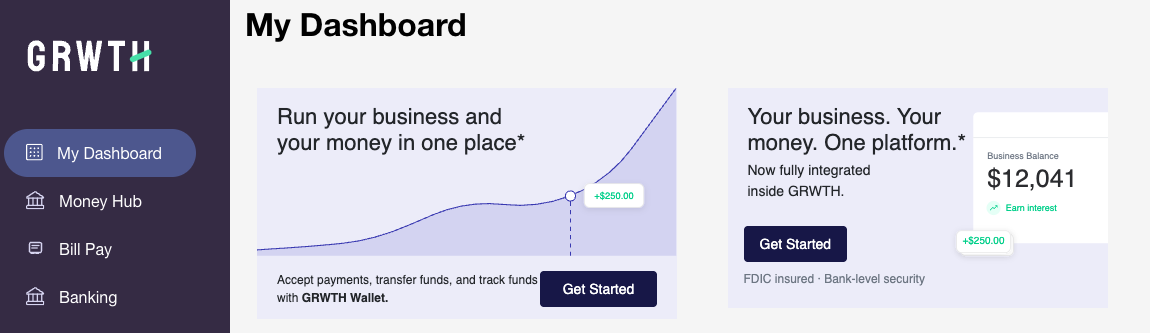
Click to open full preview in GRWTH demo view
Open this banner in Storybook to preview, theme, and export it as embeddable HTML or a PNG that can be added to emails.
Banner 1: Expanded
Banner 1: Compact
Banner 2: Expanded
Banner 2: Compact
<unit-elements-promo-card
	type="PromoCard1"
	org-name="{Partner name}"
	balance-variant="Balance"
	container-type="compact"
></unit-elements-promo-card>
where:
type— the visual design variant. Options:PromoCard1,PromoCard2.org-name— your organization name shown in the banner copy.balance-variant— the label for the balance display. Options:Balance,Wallet.container-type— the layout mode.expandedfor full-width placements,compactfor tighter spaces.show-close-button— whether to show a dismiss button. Optional, defaults tofalse.
Sidebar Recommendation
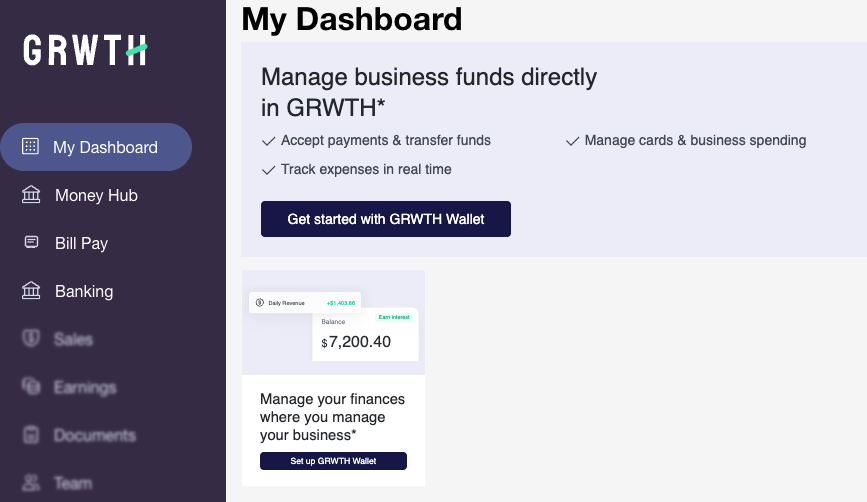
Click to open full preview in GRWTH demo view
Open this banner in Storybook to preview, theme, and export it as embeddable HTML or a PNG that can be added to emails.
Sidebar 1: Expanded
Sidebar 1: Compact
Sidebar 2: Expanded
Sidebar 2: Compact
<unit-elements-sidebar-recommendation
	type="SideBar1"
	org-name="{Partner name}"
	balance-variant="Balance"
	container-type="compact"
></unit-elements-sidebar-recommendation>
where:
type— the visual design variant. Options:SideBar1,SideBar2.org-name— your organization name shown in the recommendation copy.balance-variant— the label for the balance display. Options:Balance,Wallet.container-type— the layout mode.expandedfor full-width placements,compactfor tighter spaces.show-close-button— whether to show a dismiss button. Optional, defaults tofalse.
Hero Banner
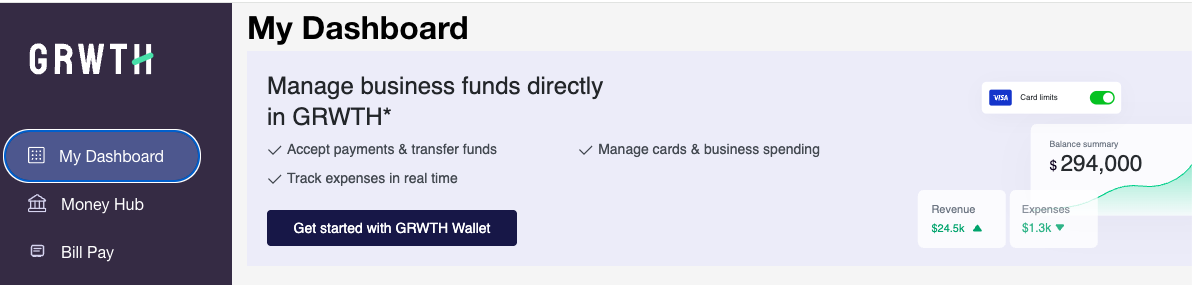
Click to open full preview in GRWTH demo view
Open this banner in Storybook to preview, theme, and export it as embeddable HTML or a PNG that can be added to emails.
Hero 1
Hero 2
where:
variant— the visual design variant. Options:HeroBanner1,HeroBanner2.org-name— your organization name shown in the banner copy.balance-variant— the label for the balance display. Options:Balance,Wallet.
Get Started button click events
When a user clicks the Get Started button in an embedded marketing component, the component dispatches a JavaScript custom event. Listen for this event to redirect the user to your banking experience — for example, to your onboarding flow or your marketing landing page.
The button property in the event detail indicates which button was clicked:
"hero"— the primary call-to-action in the hero/banner area."banner"— the secondary call-to-action in the bottom banner strip.
| Component | Event name | Detail |
|---|---|---|
unit-elements-banking-external-landing | unitButtonClicked | { button: "hero" | "banner" } |
unit-elements-billpay-external-landing | unitBillPayExternalLandingButtonClicked | { button: "hero" | "banner" } |
unit-elements-billpay-and-banking-external-landing | unitBillPayAndBankingExternalLandingButtonClicked | { button: "hero" | "banner" } |
Example — redirecting the user when they click Get Started on a banking external landing page:
<unit-elements-banking-external-landing
  company-name="Acme"
></unit-elements-banking-external-landing>
<script>
  document
    .querySelector('unit-elements-banking-external-landing')
    .addEventListener('unitButtonClicked', function () {
      // e.detail.button is "hero" or "banner" — use it to route differently per placement
      window.location.href = 'https://your-app.example.com/banking/apply';
    });
</script>
If you only need a static redirect URL, set the get-started-link attribute on unit-elements-banking-external-landing instead of wiring up a listener — see Marketing Landing Page.
Embedding banners in outreach emails
Web components can't be rendered inside an email body, so to use any of these banners in an outreach email or email signature you'll export them as PNG images and embed them as hyperlinked images.
The recommended flow:
- Open the relevant Storybook story linked from each banner section above and customize it with the Controls and Unit Theme addons.
- Open the Download PNG tab in the same Storybook panel (next to Controls) and click the download button to save a PNG of the currently rendered banner.
- Host the downloaded image somewhere your email recipients can reach (such as your CDN or any public asset host).
- In your email, wrap the image with an
<a>element whosehrefpoints to your banking experience — typically your Banking Page URL, your marketing landing page, or your application form URL, depending on the audience:
<a href="https://your-banking.example.com">
	<img src="https://your-cdn.example.com/hero-banner.png" alt="Get started with your business account" />
</a>
The exported PNG mirrors whatever you configured in Storybook at the moment of capture — theme colors and typography, org-name, balance-variant, banner type / variant, container-type, and so on. For the Promo Card, make sure logo-url points to a CORS-readable host or the logo will appear blank in the exported image.
Tracking banner clicks
To measure which emails and banner variants are driving customers into your banking experience, add tracking parameters to the link's href. The most common approach is UTM parameters, which are recognized by analytics platforms such as Google Analytics, Mixpanel, Amplitude, and Segment.
A UTM-tagged hyperlink looks like this:
<a href="https://your-banking.example.com/?utm_source=newsletter&utm_medium=email&utm_campaign=q2_activation&utm_content=hero-banner-1">
	<img src="https://your-cdn.example.com/hero-banner.png" alt="Get started with your business account" />
</a>
where:
utm_sourceis the sending channel or tool, e.g.newsletter,signature, orlifecycle.utm_mediumis the medium — useemailfor outreach emails and signatures.utm_campaignis the specific campaign or send, e.g.q2_activation,welcome_series.utm_contentis the specific banner variant or placement so you can compare them in your reports, e.g.hero-banner-1,promo-card-expanded,sidebar-1-compact.
When a customer clicks the image, the parameters are forwarded as query string values to the destination URL and recorded by whichever analytics tool you have instrumented on the landing page. Unit does not collect or report on these click events on your behalf — tracking and attribution live entirely in your own analytics stack.
If you A/B test banner variants in the same email, give each variant a distinct utm_content value so you can compare click-through rates side by side in your analytics dashboard.
Note: When banners are displayed, the website footer must include the following disclosure: "[Organization name] is a financial technology company and is not a bank. Banking services are provided by i3 Bank, Member FDIC." If APY is referenced in the banner or related page, the footer must also include: "Annual Percentage Yield (APY) is variable and subject to change after account opening. Rate is compounded monthly and credited monthly."