
Unit is working with Visa to enable Apple Pay and Google Pay for your card program. This guide walks you through what to provide your point of contact at Unit (Implementation Manager or Customer Success Manager), and what you'll need to set up on your end.
Enabling Cards for Mobile Wallet
All cards (physical and virtual) can be configured for Mobile Wallet. Mobile Wallet enablement allows you to pay using your phone, via Apple, Google, or Samsung Pay. This setup requires some design and legal work, and timelines vary depending on wallet provider approvals.
Visa DPS and Mobile Wallet Enablement
Unit issues cards through Visa DPS. Mobile wallet provisioning — including Apple Pay and Google Pay — is enabled on your card program through this Visa DPS relationship.
As a Unit client, you do not onboard with Apple or Google as a card issuer. Unit coordinates program setup with Visa, including:
- Submitting mobile wallet metadata (card art, app icon, card label, and color codes) for Visa brand approval
- Registering your program for Apple Pay and Google Pay through Visa's unified partner onboarding process
- Configuring your BINs for tokenization and in-app provisioning
You are responsible for integrating push provisioning in your mobile app using the Visa Digital Enablement (VDE) SDK and Unit's Get Mobile Wallet Payload API. The platform-specific sections below describe what Unit handles and what your development team implements for each wallet.
Setup Process
- Contact your point of contact at Unit (Implementation Manager or Customer Success Manager) to enable Mobile Wallet functionality for your cards.
- Send Mobile Wallet Metadata to Unit for submission to Visa
- Mobile Wallet Card Art: The simplest way to do this is using the same card art you use for your physical card design. If you choose this route, you do not need to provide us with any new card art.
- If you choose to design a new graphic for Mobile Wallet cards, send a 1536x969px .png file in landscape orientation. Do not include the chip, cardholder name, PAN, expiration date, or rounded edges. Please include a white or Visa-blue Visa logo. Your card art is subject to Visa brand approval, which typically takes 5 business days once your program is approved.
- Color Codes: The RGB color codes used in your card design [ex. White (255, 255, 255)]
- App Icon: A 100x100px .png file of your app icon, with the color going all the way to the edges (no rounded corners)
- Card Label: What would you like the card to be called when it’s added to the wallet?
- For Apple Wallet, provide a point of contact who can sign the Apple NDA. Include their full name, phone number, email address, and your company's business address. Unit submits this information to Visa as part of your program registration.
- Unit coordinates Apple Wallet Terms and Conditions on your behalf through Visa DPS. If you are issuing cards to businesses, you don’t need to sign, only view these terms. These T&Cs come directly from Apple and are standard for all consumer BINs. Google and Samsung Pay agreements are also coordinated through Unit and Visa.
- Complete your Visa Cardholder Agreement
- Visa requires all customers to agree to these terms before adding a card to Mobile Wallet
- Publish your Privacy Policy and Terms and Conditions on your website
- Visa uses these in the setup of your Mobile Wallet and customers can access them via Mobile Wallet by clicking “Additional Information” on their cards
- Your point of contact at Unit will inform you when your cards are ready to add to wallet
Add to Mobile Wallet
Adding a card to a Mobile Wallet (e.g. Apple Pay, Google Pay) without the "Add to Mobile Wallet" integration requires scanning a physical card with a device camera or manually typing a card number into the Wallet. By implementing the "Add to Mobile Wallet" flow described below, your end customers can add their card to a digital wallet with one tap, from within your mobile app.
Benefits
Allowing your end customers to add their card to a digital wallet in seconds from within your app, immediately after creating a debit card (or any point thereafter), contributes to a decrease time-to-first-use and increases the potential interchange revenue by making it easier to use the card.
Customer Experience
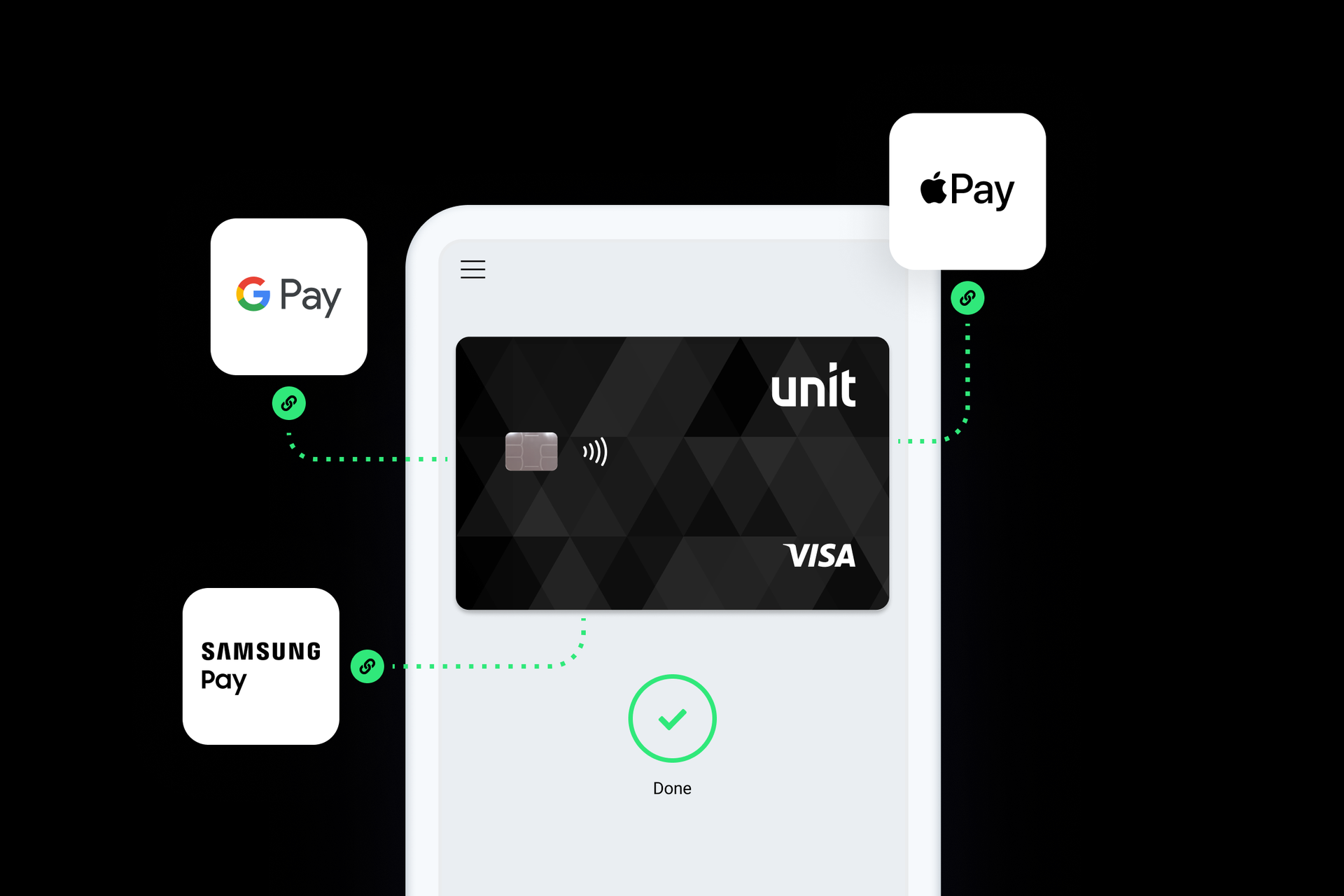
- Within your mobile app, you'll add a button that will allow your end customer to add their card to their relevant mobile wallet.
- The customer will review and agree to terms and conditions, and then immediately be able to use the card from within the wallet.
Pre-requisites
-
You’ll need to have an executed NDA with Unit.
-
The functionality is only available for mobile applications (native iOS/Android, or using a technology like React native or Flutter)
-
If your cards have not been previously enabled for mobile wallet support, there are a few preliminary steps Unit can help you with.
- Your BINs will need to be configured to allow tokenization. If this is not already complete, contact your point of contact at Unit (Implementation Manager or Customer Success Manager). Setting up your BIN for tokenization can take up to 4 weeks.
- You’ll need to provide mobile wallet card art (see the Card Issuance Guide for more information).
-
Your BINs will need to also be installed and configured for the mobile wallet SDK with Visa. Contact your point of contact at Unit (Implementation Manager or Customer Success Manager) to ensure this is configured. Setting up your BIN for SDK use takes 10-20 business days and must be complete before testing can begin.
Getting Started
Contact your point of contact at Unit (Implementation Manager or Customer Success Manager) to begin implementation on Add to Mobile Wallet functionality. Unit will guide you through Visa DPS program setup and getting your BINs configured for the mobile wallet SDK.
Compliance
- Deposit Agreement: If your cards already support mobile wallets, no additional language needs to be incorporated.
- End Customer: Unit and Visa will ensure the correct terms and conditions are presented to and consented by your end customer before adding the card to their digital wallet.
- Partner Agreements: Unit coordinates Apple Pay, Google Pay, and Samsung Pay program registration through Visa DPS. Your mobile app may still need wallet-provider-specific technical setup — see the platform sections below.
Tech Integration
-
End Customer User Interface
- Your user interface will need to instruct an end customer to add their debit card to a mobile wallet, according to their device type (iOS or Android).
- The correct terms for each wallet will be presented to and consented by your end customer.
-
Backend
- Review Unit’s API documentation for Add to Mobile Wallet.
- Contact Unit for Visa's In-App Provisioning SDK binaries, App ID
-
Sample Apps
- Unit provides three sample apps: Android, iOS and React Native
- Sample apps cannot be used with a simulator
- Available upon request
-
Testing: Once Unit has confirmed your BIN is configured for SDK use at Visa,
- Visa requires testing in production.
- The SDK imposes a limit of 7 provisioning attempts per device in a 24 hour period. Contact your point of contact at Unit if you encounter an issue.
- iOS apps should be distributed using TestFlight, no simulators.
iOS — Apple Pay
To support Apple Pay, Unit enables your card program on Visa DPS and provides the Visa SDK and mobile wallet payload API. Your development team completes the Apple-specific integration steps below.
What Unit handles
- Program registration and metadata submission to Visa
- BIN configuration for Apple Pay in-app provisioning
- Apple Wallet terms and conditions presented to your end customers
What you implement
- Integrate the Visa Digital Enablement SDK in your iOS app
- Request the Apple Pay in-app provisioning entitlement for your app
- Configure Wallet capability and your provisioning profile in Apple Developer
- Call Unit's Get Mobile Wallet Payload API to provision cards
- Provide a point of contact with a mobile number for Apple's verification process
Apple Pay Prerequirements
Request Apple Pay In-app provisioning entitlement
-
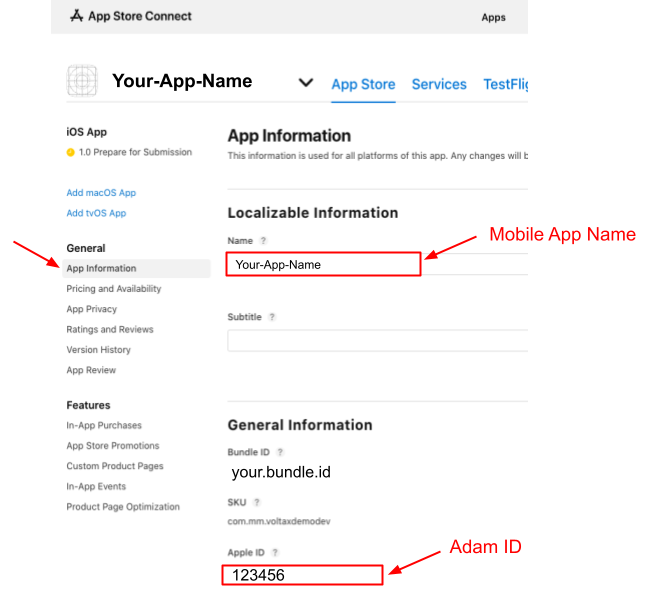
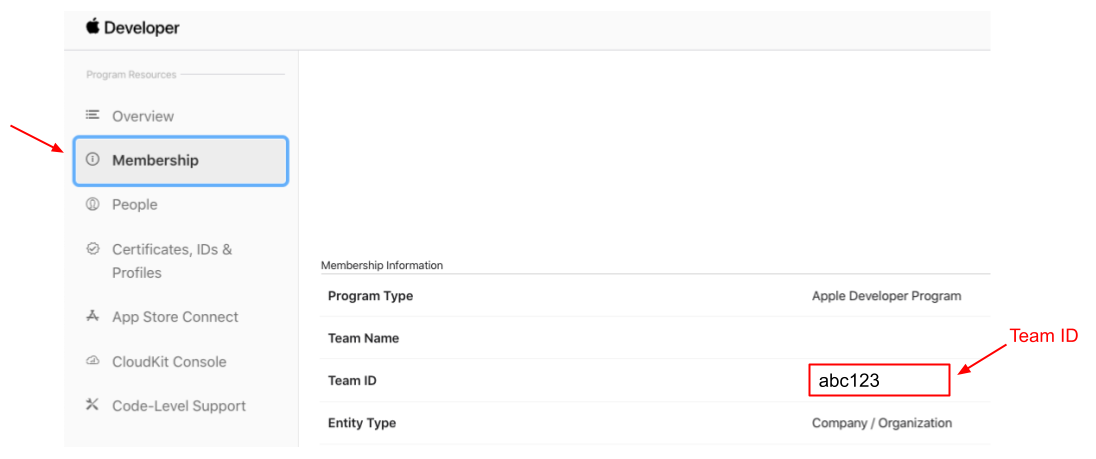
For each production instance of the app that will be used, get the Mobile App Name, Team ID, and Adam ID.
-
The Mobile App Name and the Adam ID can be found in the App Store Connect after selecting one of your apps:
-
The Team ID can be found in the Apple developer account under "Membership" section:
-
Email applepayentitlements@apple.com to request Apple Pay in-app provisioning entitlement.
- In the email, send Mobile App name, Team ID, and Adam ID for each production instance of the app.
- Once entitlement is granted by Apple, include the entitlement into provisioning profile
Apple approval contacts
Apple verifies the parties involved in the approval request by SMS. Unit collects a point of contact and mobile number for your organization, your bank partner, and Unit, and submits them with the request.
- Provide a named point of contact and mobile number for your organization.
- Confirm that the contact can receive SMS messages from Apple and respond to requests for review, confirmation, or signature.
Apple typically responds within 24–48 hours of receiving the required information. Overall timelines depend on how quickly each party responds to Apple's requests.
Setup your App in Apple Developer Portal once entitlement is granted by Apple
Add the in-app provisioning entitlement
- Sign in to your Apple developer account.
- Navigate to 'Certificates, Identifier & Profiles'.
- Select "Distribution" underneath the "Profiles" heading on the sidebar.
- Select the distribution iOS provisioning profile that will be used to deploy the app to the iTunes App Store.
- Select "Apple Pay In-App Provisioning Distribution" entitlement from the drop down to add the entitlement to the profile.
- Once the entitlement is added, follow the standard process to release the app into the App Store.
Add Wallet Capability
- Sign in to your Apple developer account.
- Navigate to 'Certificates, Identifier & Profiles'.
- Select "App IDs" underneath the "Identifiers" heading on the sidebar.
- Select the app identifier that will be used to deploy the app to the iTunes App Store.
- Under "Capabilities" tab, select the "Wallet" capability:

Integration steps
This section describes the technical steps needed to integrate with Visa's SDK and add a Unit card to the mobile Wallet.
Xcode setup verification
Wallet Capability
- Go to "Signing & Capabilities" tab of your target.
- Verify that Wallet capability is there.
In-App Provisioning entitlement
- Open your project
.entitlementfile in Xcode. - Add the Boolean key
com.apple.developer.payment-pass-provisioningis set to1(true).
Add Visa SDK to your Xcode project
-
Drag and drop the following frameworks into the XCode project:
- VisaPushProvisioning.xcframework
- VisaInAppModuleCore.xcframework
- VisaAnalytics.xcframework
- VisaFeatureModuleCore.xcframework
- VisaMobileFoundation.xcframework
- RLTMXProfiling.xcframework
- RLTMXProfilingConnections.xcframework
-
Select "Copy items if needed" (if not already selected) and click on "Finish".
-
Make sure "Embed & Sign" is selected for all the above XCFrameworks.
Visa SDK Configuration
Inside the application didFinishLaunchingWithOptions method in the AppDelegate.swift, configure VisaInAppCore as follows:
// Setup Visa SDK Config
let visaInAppConfig = VisaInAppConfig(environment: .Production, appId: "b8186bd9-fcba-b77a-11e3-1c0d2e5a3501")
do {
    try VisaInAppCore.configure(config: visaInAppConfig)
} catch {
    // handle error
}
Setup the environment (.Production or .Sandbox).
Add to Wallet flow
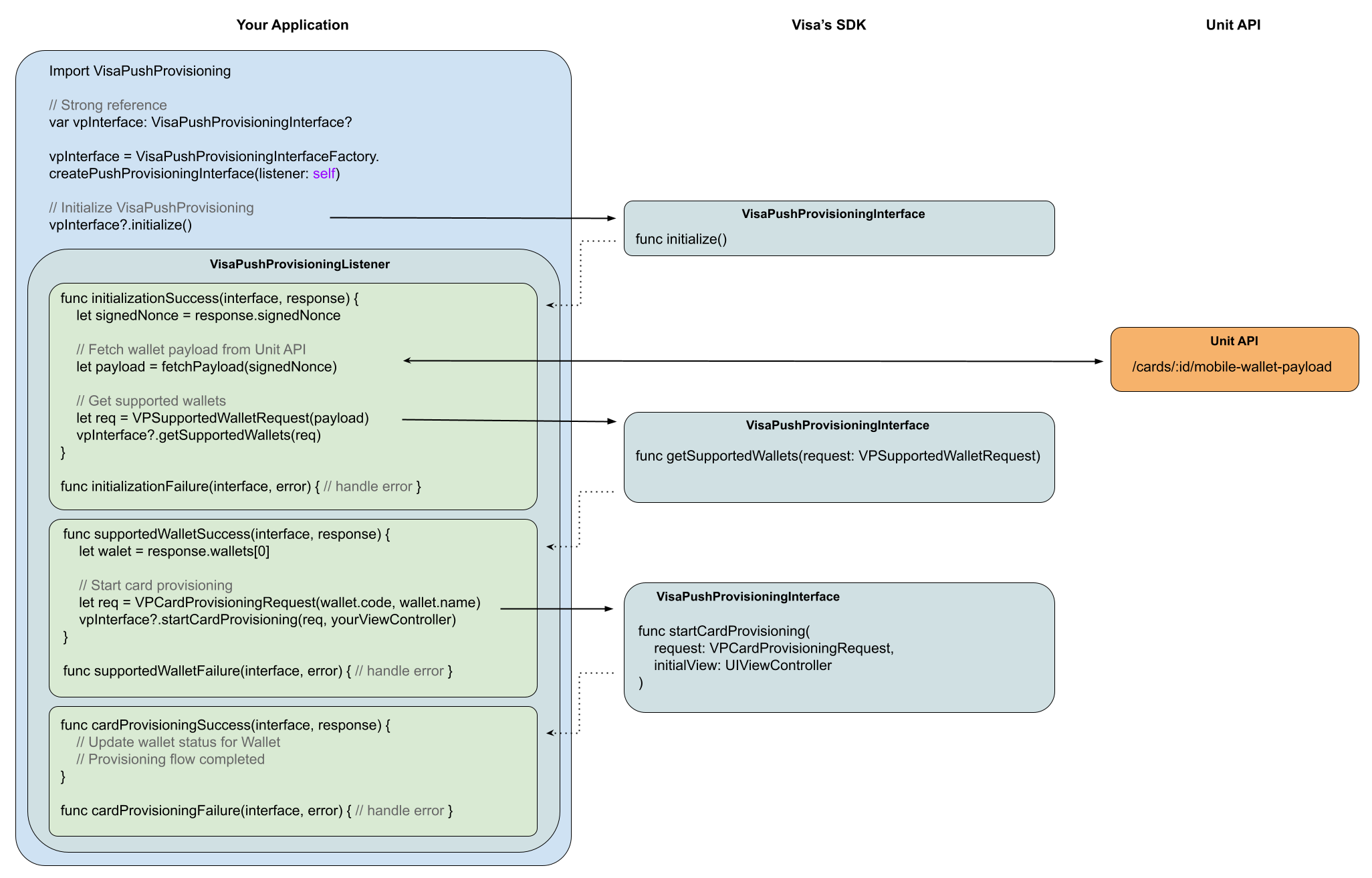
The following diagram demonstrates the Add to Wallet flow.
Below the diagram, you will find an explanation for each step in the flow.
Step 1 - Hold a strong reference to VisaPushProvisioningInterface
var vpInterface: VisaPushProvisioningInterface?
Step 2 - Initialize the VisaPushProvisioningInterface instance and implement the VisaPushProvisioningListener
Initialize the VisaPushProvisioningInterface instance in the init() method of your class:
vpInterface = VisaPushProvisioningInterfaceFactory.createPushProvisioningInterface(listener: self)
Declare the VisaPushProvisioningListener methods, we will implement them later:
func initializationSuccess(pushProvisioningInterface: VisaPushProvisioningInterface, response: VPInitResponse) { }
func initializationFailure(pushProvisioningInterface: VisaPushProvisioningInterface, error: VPError) { }

func supportedWalletSuccess(pushProvisioningInterface: VisaPushProvisioningInterface, response: VPSupportedWalletResponse) { }
func supportedWalletFailure(pushProvisioningInterface: VisaPushProvisioningInterface, error: VPError) { }

func cardProvisioningSuccess(pushProvisioningInterface: VisaPushProvisioningInterface, response: VPCardProvisioningResponse) { }
func cardProvisioningFailure(pushProvisioningInterface: VisaPushProvisioningInterface, error: VPError) { }
Step 3 - Initialize Visa SDK and get the signedNonce
Call to initialize() method
self.vpInterface?.initialize()
Handle initialization callbacks of the VisaPushProvisioningListener
func initializationSuccess(pushProvisioningInterface: VisaPushProvisioningInterface, response: VPInitResponse) {
  // Get the signedNonce
  let signedNonce = response.signedNonce
}

func initializationFailure (pushProvisioningInterface: VisaPushProvisioningInterface, error: VPError) {
  // handle error
}
Step 4 - Get wallet payload from Unit API
Get the mobile wallet encrypted payload for a specified Unit card from Unit API. Read more details in Unit get mobile wallet payload docs.
Step 5 - Get supported wallets
Call to getSupportedWallets(request: VPSupportedWalletRequest) method using the payload from step 4
let request = VPSupportedWalletRequest(encPayload: payload)
self.vpInterface?.getSupportedWallets(request: request)
Handle getSupportedWallets callbacks of the VisaPushProvisioningListener
func supportedWalletSuccess(pushProvisioningInterface: VisaPushProvisioningInterface, response: VPSupportedWalletResponse) {
  let wallet = response.wallets[0]
}

func supportedWalletFailure(pushProvisioningInterface: VisaPushProvisioningInterface, error: VPError) {
  // handle error
}
Step 6 - Start card provisioning
Call to startCardProvisioning(request: VPSupportedWalletRequest, initialView: UIViewController) method
// use a supported wallet to initialize the VPCardProvisioningRequest
let request = VPCardProvisioningRequest(walletCode: wallet.code, walletName: wallet.name)

// call to startCardProvisioning() with the request and a UIViewController to show the Apple Pay screen on
// if your current class is a UIViewController, you can pass 'self'
self.vpInterface?.startCardProvisioning(request: request, initialView: self)
Handle startCardProvisioning callbacks of the VisaPushProvisioningListener
func cardProvisioningSuccess(pushProvisioningInterface: VisaPushProvisioningInterface, response: VPCardProvisioningResponse) {
  // update wallet status for Wallet
  // provisioning flow completed, you can update the UI
}

func cardProvisioningFailure(pushProvisioningInterface: VisaPushProvisioningInterface, error: VPError) {
  // handle error
}
iOS - Add to Wallet Sample App
Steps Before running the sample app
- Open the
UnitAddToWalletSampleApp.xcworkspaceproject located inUnitAddToWalletSampleAppfolder. - Open
UNConstants.swiftfile. - Set the
customerTokenvariable with your Unit customer token:
static let customerToken: String? = YOUR_CUSTOMER_TOKEN
- Set the
cardIdvariable with your Unit's cardId:
static let cardId: String? = YOUR_CARD_ID
- In
UnitAddToWalletSampleAppfolder, runpod installin the command line.
Apple In-App Provisioning Entitlement
Important: In order to fully demonstrate the add to wallet flow, you should set your app bundle identifier that granted access of In-App provisioning from apple. If you didn't grant it yet, you can follow the following steps to simulate the flow on a simulator:
Setup to run on a simulator
- Open
UnitAddToWalletSampleApp.entitlementsfile. - Add the
com.apple.developer.payment-pass-provisioningentitlement to the dictionary. - Set the added entitlement type to Boolean and set its value to
1.
For example:
<dict>
	<key>com.apple.developer.payment-pass-provisioning</key>
	<true/>
  ...
</dict>
Running the sample app
- After running the sample app, your customer card should appear on screen.
- Tap on the "Add To Apple Wallet" button.
- See the logs printed in your screen for more details.
Android
To support Google Pay, Unit enables your card program on Visa DPS and provides the Visa SDK and mobile wallet payload API. Your development team completes the Google-specific integration steps below.
What Unit handles
- Program registration and metadata submission to Visa
- BIN configuration for Google Pay push provisioning
- Coordination of required Google agreements on your behalf through Visa DPS
What you implement
- Integrate the Visa Digital Enablement SDK in your Android app
- Complete Google's UX/branding review and API access requests for your app
- Call Unit's Get Mobile Wallet Payload API to provision cards
Google Pay Pre-requirements
- Confirm with your point of contact at Unit that your program is enabled for Google Pay on Visa DPS.
- After Unit confirms your program is registered, follow Google's Get started with Google Pay guide to access the Google Pay Issuer Console and complete your issuer profile.
- Verify that your client BIN(s) are token eligible and set up to support the Google Pay wallet type. Unit configures this through Visa DPS.
Tokens provisioned
Google's Unified Push Provisioning (UPP) API provisions both a Device Primary Account Number (the device token stored in the wallet) and an Funding Primary Account Number (the underlying card number) by default for all new clients. Your provisioning model determines what you share with Visa in Step 3 below.
Google's step-by-step instructions for apps that intend to use Google Pay
Complete Steps 1 through 3 before you begin the Visa Digital Enablement SDK integration. Return to Step 4 after app development, when you are ready to begin testing.
Step 1: [Create a Google Issuer Console profile]
Create a Google Issuer Console profile by following the steps outlined in Google's Get Started page.
- All single-use clients must have their own Issuer Console.
- All multi-use clients (resellers, BIN sponsors, and similar partners) and each of their sub-clients must have their own Issuer Console, whether they deliver a white-labeled app or an SDK.
Step 2: [Push Provisioning API access]
- Navigate to the Google Issuer Console.
- Complete Steps 1 through 4 of the Issuer Console onboarding process, including the NDA and CTA.
- Stop when Google requests a key exchange.
Clients coming behind Visa as an aggregator are not required to upload keys via the Issuer Console. Complete the Unified Push Provisioning API Intake Request instead.
Submit the intake request for each of the following:
- Aggregator linking — for both Android and Web, select Type of Request = "Aggregator/Program Manager linking", Network = Visa, and Aggregator Merchant ID =
BCR2DN4TXL64HAC5. - Allowlisting — select Type of Request = "Allowlisting".
- Android: Provide your app package for Sandbox testing only. For Production, add the package via the "Add an App" step in your Issuer Console once Google completes the key exchange following submission of the Aggregator Linking form.
- Web: Provide your web origins for Sandbox and Production separately. Once you submit the form, Google will map your package name or web origin to Visa's integrator ID and confirm when the setup is complete.
Step 3: Provide your Merchant ID and provisioning model to Visa
Share your Merchant ID and provisioning model (Device Primary Account Number only, or Device Primary Account Number and Funding Primary Account Number) with your regional Visa point of contact. If you support Device Primary Account Number and Funding Primary Account Number, your Visa configuration will need to be updated to support Funding Primary Account Number. Multi-use clients should include this information for each of their sub-clients.
This is required before field testing can begin.
Step 4: Complete Google's launch process
Complete the launch process for Android or Web accordingly. This includes UX/branding review, test case videos, field testing, and final launch approval via the Issuer Console.
UX/branding review
- Optional: You may download Google's sample app to further understand the branding guidelines.
- Review and adhere to [Google's branding and user experience requirements](Google's branding and user experience requirements).
- Option 1: Use Unit's common Visa presentation, located in the provided zip directory under
unit-common-README.md. - Option 2: Set the assets independently:
- Download the assets.
- Add the assets to your project.
- Follow the instructions mentioned here.
- Option 1: Use Unit's common Visa presentation, located in the provided zip directory under
- Create a slide deck of images with one screen per page of the full user journey of your app, starting from the login screen.
If you are using Unit's common Visa presentation, you need to get the wallets every time your app goes to the background, and then display the view according to the wallet's status (see step 4 of unit-common-README.md, located in the provided zip directory). This is required for the button to always be updated according to the current Google Wallet status.
Resellers and sub-clients
- Android: Sub-clients of resellers distributing white-labeled apps can enter the reseller's Google-approved UX flow name in the "Add a user flow" screen. Name the user flow as
<aggregator_integrator_id> - <UX_approved_review_name>and attach the approved PDF flow provided by the reseller. - Web: Sub-clients of resellers distributing white-labeled apps can attach the reseller's Google-approved PDF file.
- Sub-clients who have their own approved user flow should use that instead.
Launch approval
Once approved by Google, follow the standard process to release the app to the Google Play Store.
Steps to support Samsung Pay
If you elect to support Samsung Pay push provisioning, Unit coordinates program registration through Visa DPS. Your development team completes the Samsung-specific steps below.
Steps that are required before the start of the Visa Digital Enablement SDK integration
-
Confirm with your point of contact at Unit that your program is enabled for Samsung Pay on Visa DPS.
-
Collect the 'TSP Issuer Name(s)' which are registered with Samsung
-
Verify that your client BIN(s) are token eligible and set up to support the Samsung Pay wallet type (Unit can assist with this step)
-
Create an account in the Samsung Developer Portal, if one does not already exist:
-
Review all detailed tasks required for push provisioning outlined in the Samsung Developer Portal
-
Create a New App in the Samsung Developer Portal, following their guidelines
-
Create a New Service in the Samsung Developer Portal, following their guidelines
-
Link the New Service with the App created in Samsung Developer Portal
-
Copy and save the Service ID, which is used by mobile app during push provisioning
-
Review and adhere to Samsung's branding and user experience requirements
After these steps you should move to the Visa SDK integration steps. When you are done with the integration, complete the following steps
Follow these steps after app development (when ready to begin testing)
Complete all required steps for the activation of push provisioning as outlined in the Samsung Developer Portal, which may include the following:
- Whitelist and release the new Mobile App a. Navigate to Projects > App Management > App b. Add New Release Version, upload the APK file and Register
- Submit the release for approval in the Samsung Developer Portal Once approved by Samsung, follow the standard process to release the app to the Google Play Store.
Integration Steps
This section describes the technical steps needed to integrate with Visa's SDK and add a Unit card to the mobile Wallet.
Prerequirements
Before you start with the technical integration, please follow the prerequirements below:
- The minimum Android Operating System (OS) validated for use with the VDE SDK is 9.0 (Pie).
- Due to the usage of Google's libraries and U.S. government regulations, the Android VDE SDK cannot function on certain Huawei devices.
- The minimum supported Android SDK API version is 28.
- The deployment target is Android SDK API version is 32.
- The minimum supported Kotlin version is 1.7.0.
- The minimum supported Java version is 11.
- The SDK requires to use a physical Android device and not a virtual device.
- Make sure you have the relevant wallets to which you will add cards installed on your device updated with the newest version.
Add VDE (Visa Digital Enablement) SDK to your project
-
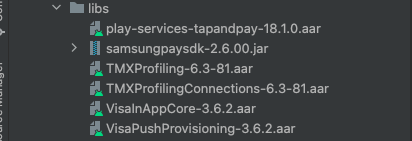
Get the push provisioning package from Unit, which consists of the following dependencies:
- VisaPushProvisioning-3.6.2.aar
- VisaInAppCore-3.6.2.aar
- TMXProfiling-6.3-81.aar
- TMXProfilingConnections-6.3-81.aar
- samsungpaysdk-2.6.00.jar
- play-services-tapandpay-18.1.0.aar
-
Add the dependencies from the previous step under the libs folder of your project:
- In Android Studio switch your folder structure from Android to Project.

- Now search for the libs folder inside the app folder.

- paste the dependencies inside the libs folder
-
In case the libs folder doesn't exist you can create it:
- Make sure the folder structure is Project (it was explained above)
- Right click on your app name in the directory tree and go to "New" => "Directory" and name it "libs"
-
Gradle Dependencies:
a. Declare the following Gradle dependencies. Make sure to add the open source dependencies mentioned:
//Only if App is developed in kotlin and using kotlin-plugins for development then below can be
//used for kotlin coroutines dependencies as well, no need to add separate dependency.
plugins {
    id 'com.android.application'
    id 'org.jetbrains.kotlin.android'
    id 'kotlin-android-extensions'
    id 'kotlin-kapt'
}

dependencies {
    //In-App Provisioning SDK
    implementation files('libs/VisaPushProvisioning-3.6.2.aar')
    implementation files('libs/VisaInAppCore-3.6.2.aar')
    implementation files('libs/TMXProfiling-6.3-81.aar')
    implementation files('libs/TMXProfilingConnections-6.3-81.aar')
    //Samsung Pay
    implementation files('libs/samsungpaysdk-2.6.00.jar')
    //Google Pay
    implementation files('libs/play-services-tapandpay-18.1.0.aar')
    implementation "com.google.android.gms:play-services-base:18.0.0"
    //okhttp covers okhttp, okio dependency
    implementation "com.squareup.okhttp3:okhttp:4.7.2"
    implementation "com.squareup.okhttp3:logging-interceptor:4.7.2"
    implementation "net.minidev:json-smart:2.4.11"
    //For TrustDefender
    implementation "commons-io:commons-io:2.13.0"
    implementation "commons-codec:commons-codec:1.16.0"
    //Nimbus
    implementation "com.nimbusds:nimbus-jose-jwt:8.2.1"
    implementation "com.google.code.gson:gson:2.8.5"
    implementation "androidx.lifecycle:lifecycle-process:2.5.1"
    implementation 'androidx.lifecycle:lifecycle-extensions:2.2.0'
    //Analytics Database
    implementation "androidx.room:room-runtime:2.4.3"
    implementation "androidx.room:room-ktx:2.4.3"
    kapt "androidx.room:room-compiler:2.4.3"
    //Instant apps
    implementation "com.google.android.gms:play-services-instantapps:18.0.0"
    //Play Integrity
    implementation "com.google.android.play:integrity:1.0.1"

    //If kotlin plugins are not added then below dependencies require to add to kotlin coroutines
    //used by SDK.
    implementation "org.jetbrains.kotlinx:kotlinx-coroutines-core:$any-latest-version"
    implementation "org.jetbrains.kotlinx:kotlinx-coroutines-android:$any-latest-version"
}
-
Additional instructions for Samsung Pay
a. If the target device includes Android 11 and above, add the below in the app's AndroidManifest.xml file. If this is not added, the VDE SDK may return a 'NOT_INSTALLED' status.
<queries>
    <package android:name="com.samsung.android.spay" />
</queries>
b. Add the below in AndroidManifest.xml file, if VDE SDK has returned a 'NOT_AVAILABLE' status.
<meta-data android:name="spay_sdk_api_level" android:value="2.6" />
<meta-data android:name="debug_mode" android:value="N" />
Configure VDE SDK in your custom application file
Import the following libraries:
import com.visa.mobileEnablement.inAppCore.*
import com.visa.mobileEnablement.pushProvisioning.*
import androidx.lifecycle.ProcessLifecycleOwner
inside your init() configure VisaInAppCore as follows:
val visaInAppConfig = VisaInAppConfig(VisaInAppEnvironment.Production, "b8186bd9-fcba-b77a-11e3-1c0d2e5a3501")
VisaInAppCore.configure(context, visaInAppConfig)
//recognizes lifecycles changes
ProcessLifecycleOwner.get().lifecycle.addObserver(VisaInAppCoreApplicationObserver())
Setup the environment (.Production or .Sandbox).
Add to Wallet flow
Overview
The following diagram demonstrates the Add to Wallet flow.
Below the diagram, you will find an explanation for each step in the flow.

Step 1 - Hold a reference to VisaPushProvisioningInterface
var pushProvisioningInterface: VisaPushProvisioningInterface? = null
Step 2 - Initialize the VisaPushProvisioningInterface instance and implement the VisaPushProvisioningListener interface in your class
Initialize the VisaPushProvisioningInterface instance in the init() method of your class:
//'this' is the object that implements VisaPushProvisioningListener
pushProvisioningInterface = VisaPushProvisioningInterfaceFactory.createPushProvisioningInterface(this)
Declare the VisaPushProvisioningListener methods, we will implement them later:
override fun initializationSuccess(
    pushProvisioningInterface: VisaPushProvisioningInterface,
    response: VPInitResponse
) { }

override fun initializationFailure(
    pushProvisioningInterface: VisaPushProvisioningInterface,
    error: VPError
) { }

override fun cardProvisioningSuccess(
    pushProvisioningInterface: VisaPushProvisioningInterface,
    response: VPCardProvisioningResponse
) { }

override fun cardProvisioningFailure(
    pushProvisioningInterface: VisaPushProvisioningInterface,
    error: VPError
) { }

override fun supportedWalletSuccess(
    pushProvisioningInterface: VisaPushProvisioningInterface,
    response: VPSupportedWalletResponse
) { }

override fun supportedWalletFailure(
    pushProvisioningInterface: VisaPushProvisioningInterface,
    error: VPError
) { }
Step 3 - Initialize Visa SDK and get the signedNonce
Call to initialize() method
pushProvisioningInterface?.initialize()
Handle initialization callbacks of the VisaPushProvisioningListener
override fun initializationSuccess(
    pushProvisioningInterface: VisaPushProvisioningInterface,
    response: VPInitResponse
) {
    val signedNonce = response.signedNonce
}

override fun initializationFailure(
    pushProvisioningInterface: VisaPushProvisioningInterface,
    error: VPError
) {
    //handle error
}
Step 4 - Get wallet payload from Unit API
Get the mobile wallet encrypted payload for a specified Unit card from Unit API. Read more details in Unit get mobile wallet payload docs.
Step 5 - Get supported wallets
Call to getSupportedWallets(request: VPSupportedWalletRequest) method using the payload from step 4
val vpSupportedWalletRequest = VPSupportedWalletRequest(payload)
pushProvisioningInterface?.getSupportedWallets(vpSupportedWalletRequest)
Handle getSupportedWallets callbacks of the VisaPushProvisioningListener
override fun supportedWalletSuccess(
   pushProvisioningInterface: VisaPushProvisioningInterface,
   response: VPSupportedWalletResponse
) {
   val wallet = response.wallets
}

override fun supportedWalletFailure(
   pushProvisioningInterface: VisaPushProvisioningInterface,
   error: VPError
) {
   // handle error
}
Step 6 - Start card provisioning
Call to startCardProvisioning(context: Context, request: VPCardProvisioningRequest) method:
val vpCardProvisioningRequest = VPCardProvisioningRequest(wallet.code, wallet.name)
pushProvisioningInterface?.startCardProvisioning(context, vpCardProvisioningRequest)
Handle startCardProvisioning callbacks of the VisaPushProvisioningListener
override fun cardProvisioningSuccess(
    pushProvisioningInterface: VisaPushProvisioningInterface,
    response: VPCardProvisioningResponse
) {
    // update wallet status for Wallet
    // provisioning flow completed, you can update the UI}
}

override fun cardProvisioningFailure(
    pushProvisioningInterface: VisaPushProvisioningInterface,
    error: VPError
) {
    // handle error
}
Android - Add to Wallet Sample App
This sample app demonstrates how to integrate with Visa's SDK in your app.
Steps Before running the sample app
- Open the project inside
UnitWalletDemofolder in the Android Studio. - Open
UNConstantsfile. - Set the
customerTokenvariable with your Unit customer token:
val customerToken: String? = YOUR_CUSTOMER_TOKEN
- Set the
cardIdvariable with your Unit's card id:
val cardId: String? = YOUR_CARD_ID
- Set the
appIdvariable with your Visa's app id:
val appId: String? = YOUR_VISA_APP_ID
Running the sample app
- After running the sample app, your customer card should appear on screen.
- Tap on "Add To G Pay" button.
- See the logs printed in your screen for more details.
React Native
Prerequirements
Complete program setup with your point of contact at Unit on Visa DPS before starting technical integration.
- To support Apple Pay, complete the Apple Pay Prerequirements and iOS integration steps.
- To support Google Pay, complete the Google Pay Prerequirements and Android integration steps.
Steps to integrate with the Visa SDK
iOS
Follow the following steps in iOS Xcode setup verification:
- Xcode setup verification.
- Add Visa SDK to your Xcode project.
Android
Follow the following steps in Android integration steps:
- Prerequirements.
- Add VDE (Visa Digital Enablement) SDK to your project.
To make a Kotlin module, additional Gradle dependencies are required.
The file android/build.gradle has to contain the following additional lines:
buildscript {
    ext {
        kotlin_version = “[version]” //(ex:1.6.0)
    }
}
dependencies {
    classpath(“org.jetbrains.kotlin:kotlin-gradle-plugin:$kotlin_version”)
}
Visa SDK Configuration Module
Please note this configuration should be made only once in an application integrating with the VDE SDK.
If the mobile app configures VisaInAppConfig more than once, nothing will happen if it is called with the same parameters, otherwise the VDE SDK will produce an exception as VisaInAppConfigException and the configs will not be updated.
iOS
Export a Swift module
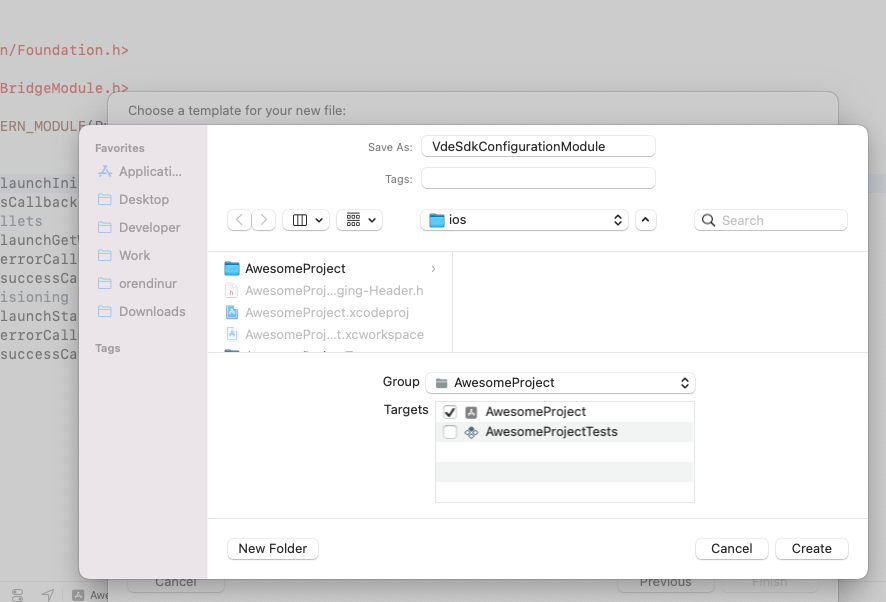
Create a .swift file named VdeSdkConfigurationModule:
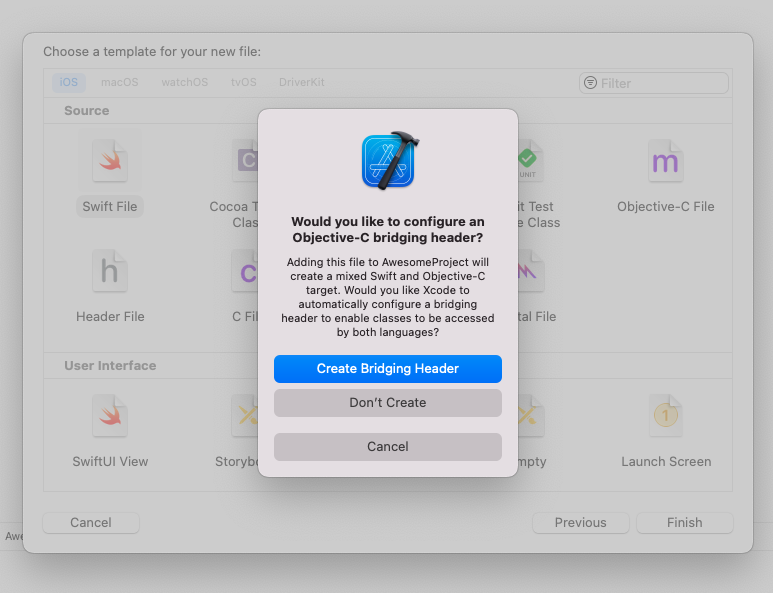
Agree to create a Bridging Header:
In the Bridge file:
#import <React/RCTBridgeModule.h>
In the .swift file:
//
//  VdeSdkConfigurationModule.swift
//

import Foundation
import VisaInAppModuleCore

@objc(VdeSdkConfigurationModule)
class VdeSdkConfigurationModule: NSObject {
  var configureSdkPromise: (resolve: RCTPromiseResolveBlock?, reject: RCTPromiseRejectBlock?)

  @objc static func requiresMainQueueSetup() -> Bool {
    return false
  }

  @objc
  func configureSdk(
    _ appId: String, environment: String, resolve: @escaping RCTPromiseResolveBlock,
    rejecter: @escaping RCTPromiseRejectBlock
  ) {
    configureSdkPromise.resolve = resolve
    configureSdkPromise.reject = rejecter
    let visaInAppConfig = VisaInAppConfig(
      environment: getEnvironment(environment: environment),
      appId: appId)
    do {
      try VisaInAppCore.configure(config: visaInAppConfig)
      configureSdkPromise.resolve?(["Success"])
    } catch {
      configureSdkPromise.reject?("configureSdk_error", "Failed to configure sdk", nil)
      print(error)
    }
  }

  // Get proper environment constant
  func getEnvironment(environment: String) -> VisaInAppEnvironment {
    if environment.lowercased().contains("prod") {
      return VisaInAppEnvironment.Production
    } else {
      return VisaInAppEnvironment.Sandbox
    }
  }
}
Create an objective-c file named VdeSdkConfigurationModule (the same name as .swift file)
- An empty file
To expose our swift methods to RN add:
//
//  VdeSdkConfigurationModule.m
//

#import <Foundation/Foundation.h>
#import <React/RCTBridgeModule.h>

@interface RCT_EXTERN_MODULE(VdeSdkConfigurationModule, NSObject)
RCT_EXTERN_METHOD(configureSdk: (NSString *)appId
                  environment: (NSString *)appId
                  resolve: (RCTPromiseResolveBlock)resolve
                  rejecter:(RCTPromiseRejectBlock)reject)

@end
Android
Android Module Creation
The module integrating the VDE SDK Configuration methods is implemented as a native class inside
the android folder, under the directory tree corresponding to the project name and package. As an
example: android/app/src/main/java/com/your-app-name/VDEConfigurationModule.kotlin
Create a kotlin class named VdeSdkConfigurationModule.
In this kotlin class:
class VdeSdkConfigurationModule (reactContext: ReactApplicationContext) : ReactContextBaseJavaModule(reactContext) {

  private lateinit var visaInAppConfig: VisaInAppConfig

  @ReactMethod
  fun configureSdk(appId: String = "b8186bd9-fcba-b77a-11e3-1c0d2e5a3501",
                   environment: String = "Production",
                   configureSdkPromise: Promise
  ){
    visaInAppConfig = VisaInAppConfig(getEnvironment(environment), appId)
    VisaInAppCore.configure(reactApplicationContext.applicationContext, visaInAppConfig)
    UiThreadUtil.runOnUiThread {
      // recognizes when the application is in the background or foreground.
      ProcessLifecycleOwner.get()
        .lifecycle
        .addObserver(VisaInAppCoreApplicationObserver())
    }
    configureSdkPromise.resolve("Success")
  }

  private fun getEnvironment(env: String): VisaInAppEnvironment {
    if (env.lowercase(Locale.ROOT).contains("prod")) {
      return VisaInAppEnvironment.Production
    }
    return VisaInAppEnvironment.Sandbox
  }

  override fun getName(): String {
    return "VdeSdkConfigurationModule"
  }
}
Android Module Registration
Once a native module is written, it needs to be registered with React Native. To do so, the native module is added to a ReactPackage which is then registered with React Native.
React Native invokes the method createNativeModules() on a ReactPackage in order to get the list of native modules to register.
For Android, if a module is not instantiated and returned in createNativeModules, it will not be available from JavaScript.
To add the Native Module to ReactPackage, create a new Class named MyAppPackage that implements ReactPackage inside the android/app/src/main/java/com/your-app-name/ folder, and add the following code:
import android.view.View
import com.facebook.react.ReactPackage
import com.facebook.react.bridge.NativeModule
import com.facebook.react.bridge.ReactApplicationContext
import com.facebook.react.uimanager.ReactShadowNode
import com.facebook.react.uimanager.ViewManager

class MyAppPackage : ReactPackage {

    override fun createViewManagers(
        reactContext: ReactApplicationContext
    ): MutableList<ViewManager<View, ReactShadowNode<*>>> = mutableListOf()

    override fun createNativeModules(
        reactContext: ReactApplicationContext
    ): MutableList<NativeModule> {
        var modules: ArrayList<NativeModule> = ArrayList()
        modules.add(VdeSdkConfigurationModule(reactContext))
        return modules
    }
}
Once the module is imported with this code, it needs to be registered to the list of packages returned in ReactNativeHost's getPackages() method.
In android/app/src/main/java/com/your-app-name/MainApplication.java, locate
ReactNativeHost’s getPackages() method and add your package to the packages list getPackages() returns:
  @Override
  protected List<ReactPackage> getPackages() {
    @SuppressWarnings("UnnecessaryLocalVariable")
    List<ReactPackage> packages = new PackageList(this).getPackages();
    // Packages that cannot be autolinked yet can be added manually here, for example:
    // packages.add(new MyReactNativePackage());
    packages.add(new MyAppPackage());

    return packages;
  }
The module is now successfully registered.
Module access from Javascript
In order to access your native module from JavaScript you need to first import NativeModules from React Native:
import { NativeModules } from 'react-native';
You can then access the VdeSdkConfigurationModule native module off of NativeModules:
const { VdeSdkConfigurationModule } = NativeModules;
Now that you have the VdeSdkConfigurationModule available, you can invoke your native method configureSdk:
const configureSdk = async () => {
  try {
    const response = await VdeSdkConfigurationModule.configureSdk(AppId, "production");
  } catch (error) {
    console.error(error);
  }
};
Before you try to access the native modules, make sure you rebuild the iOS/Android project.
Visa SDK Push Provisioning Module
iOS
Export a Swift module
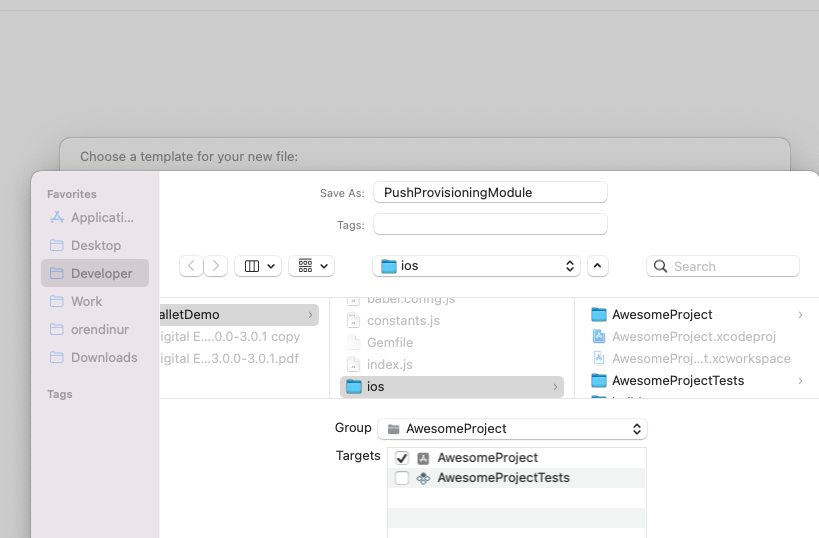
Create a .swift file named PushProvisioningModule
- In the .swift file:
//
//  PushProvisioningModule.swift
//

import Foundation
import UIKit
import VisaPushProvisioning

@objc(PushProvisioningModule)
class PushProvisioningModule: NSObject, VisaPushProvisioningListener {

  var provisioningInterface: VisaPushProvisioningInterface?
  var APPLE_WALLET_CODE = "ApplePayPushProvision"

  var launchInitializePromise: (resolve: RCTPromiseResolveBlock?, reject: RCTPromiseRejectBlock?)
  var launchGetWalletsPromise: (resolve: RCTPromiseResolveBlock?, reject: RCTPromiseRejectBlock?)
  var launchStartCardProvisioningPromise:
    (resolve: RCTPromiseResolveBlock?, reject: RCTPromiseRejectBlock?)

  @objc
  static func requiresMainQueueSetup() -> Bool {
    return false
  }

  // SDK Initialize
  @objc
  func launchInitialize(
    _ resolve: @escaping RCTPromiseResolveBlock, rejecter: @escaping RCTPromiseRejectBlock
  ) {
    launchInitializePromise.resolve = resolve
    launchInitializePromise.reject = rejecter
    provisioningInterface =
      VisaPushProvisioningInterfaceFactory.createPushProvisioningInterface(listener: self)
    provisioningInterface?.initialize()
  }

  // Get Eligible Wallets
  @objc
  func launchGetWallets(
    _ params: String, resolve: @escaping RCTPromiseResolveBlock,
    rejecter: @escaping RCTPromiseRejectBlock
  ) {
    launchGetWalletsPromise.resolve = resolve
    launchGetWalletsPromise.reject = rejecter
    // convert JSON param
    if let data = params.data(using: .utf8) {
      do {
        if let args = try JSONSerialization.jsonObject(with: data, options: []) as? [String: Any],
          let encPayload = args["encPayload"] as? String
        {
          let request = VPSupportedWalletRequest(encPayload: encPayload)
          provisioningInterface?.getSupportedWallets(request: request)
        }
      } catch {
        print(error.localizedDescription)
      }
    }
  }

  // Start Card Provisioning
  @objc
  func launchStartCardProvisioning(
    _ params: String, resolve: @escaping RCTPromiseResolveBlock,
    rejecter: @escaping RCTPromiseRejectBlock
  ) {
    launchStartCardProvisioningPromise.resolve = resolve
    launchStartCardProvisioningPromise.reject = rejecter
    //     convert JSON param
    if let data = params.data(using: .utf8) {
      do {
        if let args = try JSONSerialization.jsonObject(with: data, options: []) as? [String: Any],
          let walletCode = args["walletCode"] as? String,
          let walletName = args["walletName"] as? String
        {
          let code =
            walletCode == APPLE_WALLET_CODE
            ? VPSupportedWalletCode.ApplePayPushProvision : VPSupportedWalletCode.VCEHPushProvision
          let request = VPCardProvisioningRequest(walletCode: code, walletName: walletName)
          guard let window = UIApplication.shared.delegate?.window as? UIWindow,
            let rootViewController = window.rootViewController
          else {
            return
          }
          provisioningInterface?.startCardProvisioning(
            request: request,
            initialView: rootViewController)
        }
      } catch {
        print(error.localizedDescription)
      }
    }
  }

  // Success callback after SDK initialize method call
  func initializationSuccess(
    pushProvisioningInterface: VisaPushProvisioningInterface,
    response:
      VPInitResponse
  ) {

    launchInitializePromise.resolve?([response.toJsonString() as Any])
  }
  // Failure callback after SDK initialize method call
  func initializationFailure(
    pushProvisioningInterface: VisaPushProvisioningInterface,
    error:
      VPError
  ) {
    launchInitializePromise.reject?("initializationFailure", error.toJsonString(), nil)
  }

  // Success callback after SDK getSupportedWallets method call
  func supportedWalletSuccess(
    pushProvisioningInterface: VisaPushProvisioningInterface,
    response: VPSupportedWalletResponse
  ) {
    launchGetWalletsPromise.resolve?([response.toJsonString() as Any])
  }
  // Failure callback after SDK getSupportedWallets method call
  func supportedWalletFailure(
    pushProvisioningInterface: VisaPushProvisioningInterface,
    error:
      VPError
  ) {
    launchGetWalletsPromise.reject?("supportedWalletFailure", error.toJsonString(), nil)
  }

  // Success callback after SDK startCardProvisioning method call
  func cardProvisioningSuccess(
    pushProvisioningInterface: VisaPushProvisioningInterface,
    response: VPCardProvisioningResponse
  ) {
    launchStartCardProvisioningPromise.resolve?([response.toJsonString() as Any])
  }
  // Failure callback after SDK startCardProvisioning method call
  func cardProvisioningFailure(
    pushProvisioningInterface: VisaPushProvisioningInterface,
    error:
      VPError
  ) {
    launchStartCardProvisioningPromise.reject?("cardProvisioningFailure", error.toJsonString(), nil)
  }
}
Create an objective-c file named PushProvisioningModule (the same name as .swift file)
- An empty file
In the Objective-c file:
- To expose our swift methods to RN add:
//
//  PushProvisioningModule.m
//

#import <Foundation/Foundation.h>
#import <React/RCTBridgeModule.h>
@interface RCT_EXTERN_MODULE(PushProvisioningModule, NSObject)
    // SDK Initialize
    RCT_EXTERN_METHOD(launchInitialize: (RCTPromiseResolveBlock)resolve
                      rejecter: (RCTPromiseRejectBlock)reject)

    // Get Eligible Wallets
    RCT_EXTERN_METHOD(launchGetWallets: (NSString *)params
                      resolve: (RCTPromiseResolveBlock)resolve
                      rejecter:(RCTPromiseRejectBlock)reject)

    // Start Card Provisioning
    RCT_EXTERN_METHOD(launchStartCardProvisioning: (NSString *)params
                      resolve: (RCTPromiseResolveBlock)resolve
                      rejecter:(RCTPromiseRejectBlock)reject)
@end
Android
Android Module Creation
Create a kotlin class named PushProvisioningModule.
In this kotlin class:
For Module declaration:
- Hold a reference to
VisaPushProvisioningInterface. - Prepare the SDK
initialize,getSupportedWalletsandstartCardProvisioning, with result assignments:
class PushProvisioningModule (reactContext: ReactApplicationContext) : ReactContextBaseJavaModule(reactContext),
  VisaPushProvisioningListener {

  private lateinit var visaPushProvisioningInterface: VisaPushProvisioningInterface
  private lateinit var launchInitializePromise: Promise
  private lateinit var launchGetWalletsPromise: Promise
  private lateinit var launchStartCardProvisioningPromise: Promise
  private lateinit var gson: Gson

  override fun getName(): String {
    return "PushProvisioningModule"
  }

  @ReactMethod
  fun launchInitialize(promise: Promise) {
    gson = Gson()
    this.launchInitializePromise = promise
    visaPushProvisioningInterface =
      VisaPushProvisioningInterfaceFactory.createPushProvisioningInterface(
        this)
    visaPushProvisioningInterface.initialize()
  }

  @ReactMethod
  fun launchGetWallets(params: String, promise: Promise){
    this.launchGetWalletsPromise = promise
    visaPushProvisioningInterface.getSupportedWallets(gson.fromJson(params,
      VPSupportedWalletRequest::class.java))
  }

  @ReactMethod
  fun launchStartCardProvisioning(params: String, promise: Promise){
    this.launchStartCardProvisioningPromise = promise
    visaPushProvisioningInterface.startCardProvisioning(reactApplicationContext.applicationContext,
      gson.fromJson(params, VPCardProvisioningRequest::class.java))
  }

  override fun initializationFailure(
    pushProvisioningInterface: VisaPushProvisioningInterface,
    error: VPError
  ) {
    this.launchInitializePromise.reject("initializationFailure", gson.toJson(error));

  }

  override fun initializationSuccess(
    pushProvisioningInterface: VisaPushProvisioningInterface,
    response: VPInitResponse
  ) {
    Log.d("PushProvisioningModule", "initialization success, got signedNonce")
    this.launchInitializePromise.resolve(gson.toJson(response));
  }

  override fun supportedWalletFailure(
    pushProvisioningInterface: VisaPushProvisioningInterface,
    error: VPError
  ) {
    Log.d("PushProvisioningModule", "initialization failed")
    this.launchGetWalletsPromise.reject("supportedWalletFailure", gson.toJson(error));
  }

  override fun supportedWalletSuccess(
    pushProvisioningInterface: VisaPushProvisioningInterface,
    response: VPSupportedWalletResponse
  ) {
    this.launchGetWalletsPromise.resolve(gson.toJson(response));
  }

  override fun cardProvisioningFailure(
    pushProvisioningInterface: VisaPushProvisioningInterface,
    error: VPError
  ) {
    this.launchStartCardProvisioningPromise.reject("cardProvisioningFailure", gson.toJson(error));

  }

  override fun cardProvisioningSuccess(
    pushProvisioningInterface: VisaPushProvisioningInterface,
    response: VPCardProvisioningResponse
  ) {
    this.launchStartCardProvisioningPromise.resolve(gson.toJson(response));
  }
}
Android Module Registration
Add the next line to the MyAppPackage class, just as you did for the VdeSdkConfigurationModule:
modules.add(PushProvisioningModule(reactContext))
Module access from Javascript
In order to access your native module from JavaScript you need to first import NativeModules from React Native:
import { NativeModules } from 'react-native';
You can then access the PushProvisioningModule native module off of NativeModules:
const { PushProvisioningModule } = NativeModules;
Now that you have the PushProvisioningModule available, you can invoke your native methods:
// To call the module method to use SDK method initialize
  const launchInitialize = async () => {
    try {
      // To call the module method to use SDK method initialize
      const response = await PushProvisioningModule.launchInitialize();
    } catch (error) {
      // Manage errors
    }
  };
// To call the module method to use SDK method getSupportedWallets
const launchGetWallets = async () => {
    try {
        // To call the module method to use SDK method initialize
        const response = await PushProvisioningModule.launchGetWallets(
            JSON.stringify({
                encPayload: encryptedPayload
            });
        }
        catch (error) {
            // Manage errors
        }
    }
};
// To call the module method to use SDK method startCardProvisioning
const launchStartCardProvisioning = async () => {
    try {
        // To call the module method to use SDK method initialize
        const response = await PushProvisioningModule.launchStartCardProvisioning(
            JSON.stringify({
                walletCode: walletCode,
                walletName: walletDescription
            });
        }
        catch (error) {
            // Manage errors
        }
    }
};
React Native - Add to Wallet Sample App
This sample app demonstrates how to integrate with Visa's SDK in your app.
Steps Before running the sample app
- Open the
UnitWalletDemoproject with your code editor. - Open the
constantsfile undersrc/shared. - Set the
UNIT_CONSTANTSvariable with your Unit's card id and customer token:
export const UNIT_CONSTANTS = {
    CARD_ID: <YOUR_CARD_ID>,
    CUSTOMER_TOKEN: <YOUR_CUSTOMER_TOKEN>
}
- Set the
VISA_CONSTANTSvariable with your Visa's App id:
export const VISA_CONSTANTS = {
    APP_ID: <YOUR_VISA_APP_ID>
}
Additional steps only for iOS:
-
In the ios folder, run
pod installin the command line. -
Follow the instructions at the Apple In-App Provisioning Entitlement section.
Running the sample app
- Start Metro
Using npm:
npm start
Using yarn:
yarn start
- Start your application by running it directly from within Xcode/Android Studio.
- After running the sample app, you should see a button that will launch the push provisioning flow once it is clicked.
- See the logs printed in your terminal for more details.